
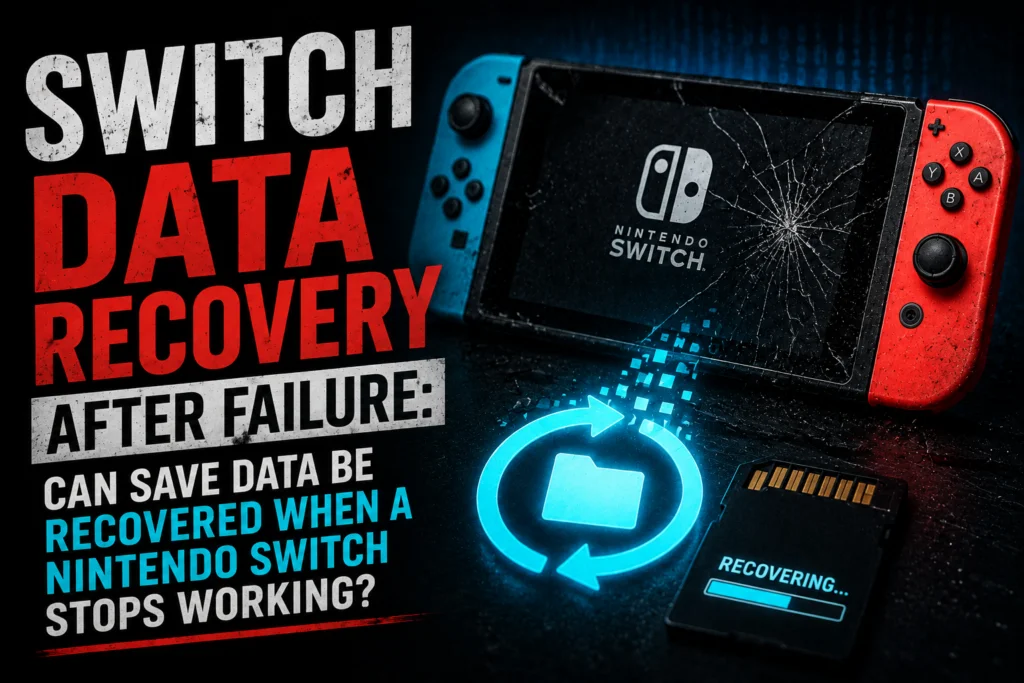
Nintendo Switch Hardware Check: Resolving Save Data Errors After Import Purchases
Traveling abroad and picking up exclusive Japanese gaming merchandise, limited-edition confectionary bundles, or regional hardware variants is a rite of passage for many enthusiasts. However, combining international physical goods, localized digital accounts, and regional eShop releases can sometimes trigger unexpected software flags, save data synchronization errors, or network handshakes failing between your console and Nintendo’s servers.
If you recently imported physical items, game cards, or promotional bundles from regions like Akihabara and your Nintendo Switch is failing to read data or sync profile achievements, here is the technical diagnostic path to get your hardware running cleanly.
Verifying Game Card and Region Compatibility
While the Nintendo Switch is technically region-free regarding physical game cartridges, specific promotional codes, digital DLC packs, and bundled items are strictly tied to regional eShop storefronts.
- Physical Cartridge Read Errors: If a Japanese import game card throws an unrecognized error code (such as 2002-2002), power down the console completely by holding the physical Power button for three seconds, selecting Power Options, and choosing Turn Off. Eject the cartridge, inspect the gold pins for any dust or manufacturing residue, and reinsert it firmly.
- Account Region Discrepancies: DLC bundled with physical merchandise often requires a matching regional Nintendo Account. If your primary profile is registered to the UK or US eShop, a Japanese DLC redemption code will fail. You must create a secondary user profile on your Switch linked specifically to a Nintendo Account set to Japan to redeem region-locked digital extras.
Clearing the System Cache for Corrupted Import Data
When swapping between regional cartridges, localized software, and importing data bundles, cached temporary files can cause the Switch UI to hang or display incorrect icon metadata.
- Navigate to System Settings from the main Home menu.
- Scroll down and select System, then move to the right-hand panel and select Formatting Options.
- Scroll down and select Reset Cache.
- Choose the user profile you wish to clear and confirm. Note: This process deletes cached passwords, user-specific web cookies, and temporary data, but it will not touch your saved games or installed software.
Performing a Safe Power Cycle
If your Nintendo Switch dock or console is failing to recognize newly connected accessories, USB-C power delivery devices, or LAN adapters purchased during international travels, a full power cycle clears temporary hardware handshake states:
- Remove the console from the dock and disconnect the AC adapter from both the wall outlet and the dock base.
- Hold down the physical Power Button on the top of the console for a full 12 seconds to force a complete hardware shutdown.
- Leave the console unpowered for 60 seconds to allow internal components to fully reset.
- Reconnect the official Nintendo power supply directly to the console (bypassing the dock first to test direct charging) and power the system back on.
By systematically verifying your regional account pairings, clearing corrupted system caches, and executing a proper hardware power cycle, you can bypass software conflicts and ensure your imported media and hardware interact seamlessly with your primary setup.