
How to Fix Green Flickering Screen Iphone 14 Pro Max
How to Fix Green Flickering Screen on iPhone 14 Pro Max
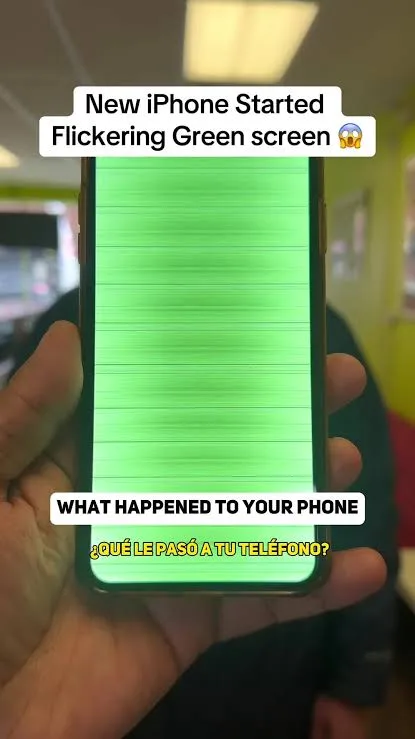
A green flickering screen on iPhone 14 (and related Pro models) occurs when the display driver integrated circuit (DDIC) fails to maintain proper gamma voltage regulation across the Low-Temperature Polycrystalline Oxide (LTPO) OLED panel. Because modern Super Retina XDR displays use dynamic ProMotion refresh rate switching (ramping down to 1 Hz on the Always-On Display and up to 120 Hz under touch interaction), unstable OLED bias voltages ($V_{GH}$, $V_{GL}$, and $V_{DD}$), pulse-width modulation (PWM) timing conflicts at low brightness, or microscopic hairline fractures along the display flex cable traces will trigger rapid green strobing, static green horizontal lines, or a total green screen lockup.
Quick Diagnostic Matrix
| Symptom | Root Cause | Setting / Diagnostic Path | Recommended Fix |
| Flickering occurs during Lock Screen / Always-On transitions | LTPO refresh rate timing desynchronization between 1 Hz (AOD) and 120 Hz | Settings > Display & Brightness | Toggle off Always On Display; test with Auto-Lock set to 1 minute. |
| Rapid green flicker that disappears at 60 Hz | Display Driver IC (DDIC) failing high-frequency ProMotion clock cycles | Settings > Accessibility > Motion | Enable Limit Frame Rate (locks display refresh rate to 60 Hz). |
| Flicker triggers when lighting conditions change | Ambient light sensor or True Tone PWM brightness modulation loop | Settings > Display / Accessibility | Disable True Tone, Auto-Brightness, and Night Shift. |
| Flicker started immediately after an iOS update | Corrupted display calibration parameters in the iOS display compositor cache | Hardware Buttons / DFU Mode | Perform a Force Restart; execute a clean DFU restore without restoring backups. |
| Solid green wash or violent strobe across the entire panel | Internal micro-fracture on the OLED flex cable power line ($V_{GH}$ rail) | Micro-soldering / Apple Service | Perform the display flex jumper wire repair or complete OLED screen replacement. |
1. Force Hard Restart to Flush the Display Framebuffer
If the green flickering iphone screen is caused by an iOS display compositor deadlock, memory leak, or graphics driver stall in the iOS kernel, a standard software slide-to-power-off will fail because the OS simply hibernates active kernel threads. A hardware-level force restart cuts power to the display subsystem and flushes the framebuffer memory.
[Hardware Button Sequence]
 1. Quick-press and release [Volume Up]  ──► (+)
 2. Quick-press and release [Volume Down] ──► (-)
 3. Press and hold [Side / Power Button]   ──► (Hold ~10-15s until Apple Logo appears)
Quickly press and release the Volume Up button.
Quickly press and release the Volume Down button.
Press and hold the Side (Power) button down continuously for 10 to 15 seconds.
Ignore any on-screen slider prompts. Keep holding the button until the screen goes completely black and the white Apple logo appears on the display.
Release the button and allow iOS to boot clean.
2. Lock Frame Rate to 60 Hz (Bypass ProMotion LTPO Desync)
On ProMotion devices—whether diagnosing a flickering green screen iphone 13 pro max, an iPhone 14 Pro Max, or a green flickering screen iphone 15 Pro—the LTPO backplane constantly cycles between 1 Hz, 10 Hz, 24 Hz, 30 Hz, 60 Hz, and 120 Hz. When the timing controller inside the DDIC degrades, switching refresh frequencies causes visible green voltage fluctuations. Locking the panel to a static 60 Hz prevents erratic frequency scaling.
[Settings]
 └── Accessibility
      └── Motion
           └── [Toggle ON] "Limit Frame Rate" (Locks display to 60 FPS / 60 Hz)
Open Settings on your iPhone.
Scroll down and tap Accessibility.
Select Motion.
Toggle the switch next to Limit Frame Rate to On.
Mechanism: This forces the GPU and display engine to cap frame presentation at 60 Hz, disabling the high-speed 120 Hz ProMotion frequency steps where voltage dropouts most commonly trigger the green flicker.
If the screen stabilizes immediately, the panel’s high-frequency clock line has developed high internal resistance.
3. Disable Always-On Display and True Tone Sensors
The Always-On Display (AOD) introduced on the iPhone 14 Pro Max drops the OLED refresh rate down to 1 Hz and lowers display driving voltages to conserve battery. If the DDIC power management circuitry struggles to ramp voltage back up when waking the device, the panel will flash green. Additionally, aggressive PWM cycling from ambient sensors can destabilize brightness levels.
[Settings > Display & Brightness]
 ├── Always On Display ──► [Toggle OFF]
 ├── True Tone         ──► [Toggle OFF]
 └── Night Shift       ──► [Toggle OFF]
Navigate to Settings > Display & Brightness.
Tap Always On Display and turn the master toggle Off.
Return to the main display menu and toggle True Tone to Off.
Tap Night Shift and ensure it is disabled; color temperature shifts modify individual subpixel voltages (specifically the green subpixel channel), which can aggravate hardware-level flickering.
Go to Settings > Accessibility > Display & Text Size, scroll to the very bottom, and toggle Auto-Brightness to Off to stop rapid PWM voltage adjustments in changing light.
4. Perform a Clean DFU Restore (Rule Out Firmware/OS Corruption)
If you are looking for an iphone green screen flickering fix after a botched iOS installation, deep software corruption in the display driver firmware partition can only be rectified by putting the device into Device Firmware Update (DFU) mode. This wipes the flash storage, reinstalls a clean bootloader, and flashes fresh display microcode.
[Connect iPhone to Mac / PC via Lightning Cable]
 1. Quick-press [Vol Up], quick-press [Vol Down]
 2. Press and hold [Side Button] for 10 seconds until screen goes black
 3. WHILE holding [Side Button], press and hold [Vol Down] for 5 seconds
 4. Release [Side Button], continue holding [Vol Down] for 10 seconds
 (Screen MUST stay completely black; Finder/iTunes detects Recovery Device)
Connect your iPhone to a computer running the latest version of macOS (Finder) or Windows (Apple Devices app / iTunes) using a certified MFi cable.
Backup all personal data to iCloud or your computer.
Enter DFU mode using the exact timing sequence above. If the Apple logo appears, you held the buttons too long and must restart the process.
When Finder or iTunes prompts that it has detected an iPhone in recovery mode, select Restore iPhone.
Do not disconnect the cable until the operating system installation has finished completely.
Set the phone up as a New Device initially (do not restore your backup yet) to test whether the green flickering persists on a pristine operating system build.
5. Model-Specific Failure Patterns Across Generations
While this guide focuses on the 14 Pro Max, green screen and flickering anomalies stem from distinct architectural variations across different iPhone generations:
iPhone 13 & 13 Pro Series: The green flickering screen iphone 13 and flickering green screen iphone 13 pro max are widely documented as the precursor to the notorious “Green Screen of Death” (GSOD). This is caused by thermal stress fracturing the internal $V_{GH}$ (Gate High Voltage) power trace on the OLED flex cable near the bottom chassis bend.
iPhone 14 Series: The standard non-Pro green flickering screen iphone 14 uses a traditional 60 Hz LTPS OLED panel. Flickering on this model is typically related to ambient sensor PWM calibration or physical display impact rather than ProMotion controller failure.
iPhone 15 & 16 Series: Cases of a green flickering screen iphone 15 or green flickering screen iphone 16 frequently correlate with early iOS dynamic island compositor conflicts or edge-panel bonding stress from thermal expansion under fast-charging loads.
iPhone 12 Series: The green flickering screen iphone 12 was largely addressed via iOS software updates that resolved a low-brightness black-point rendering bug where the OLED panel failed to turn subpixels completely off at 0–15% brightness.
6. The Hardware Solution: OLED Flex Jumper Wire vs. Screen Replacement
If software adjustments, 60 Hz locking, and DFU restores fail to resolve the issue—or if your screen flashes violently before turning into a solid, unreadable bright green or white canvas—you are facing the hardware trace separation defect common to the 13 Pro Max and 14 Pro Max chassis.
[Display Flex Cable / Circuit Bypass]
 ┌────────────────────────────────────────────────────────┐
 │            Super Retina XDR OLED Panel                 │
 └──────────────────────────┬─────────────────────────────┘
                            │ (Flex Cable Bend Radius)
                   [Fractured V_GH Trace] <── Disconnects Gate Voltage
                            │
               ┌────────────┴────────────┐
               │ [Micro-Jumper Wire Fix] │ <── Bridges 0.02mm insulated copper wire
               └────────────┬────────────┘     directly to supply test point (TP)
                            ▼
               [Display Driver IC (DDIC)]
The Root Defect: Thermal expansion and drop vibrations cause a microscopic break on the delicate flexible printed circuit (FPC) trace supplying high-side gate driver voltage ($V_{GH}$) to the row drivers embedded along the glass edge. When the row drivers lose bias voltage, all subpixels default to their unlatched state, flooding the panel with green light.
The Micro-Soldering Jumper Bypass: Professional board-level micro-soldering technicians can resolve this without replacing the entire expensive display. By scraping away the solder mask on the display flex cable and soldering a microscopic ($0.02text{mm}$) insulated copper jumper wire from the $V_{GH}$ power rail test point directly to the corresponding pad on the panel driver, stable voltage is restored. This eliminates the green flickering at a fraction of the cost of a full screen swap.
Official Apple Service: If your device is under standard warranty, AppleCare+, or qualifies under an active internal service memo, schedule an appointment at an Apple Store or Apple Authorized Service Provider (AASP). Technicians will run Apple Service Toolkit (AST2) display diagnostics and replace the entire front display module, recalibrating Face ID and True Tone via Apple’s cloud configuration servers.
If the screen continues to show a green flicker only at minimum brightness in a dark room—and remains completely clear under normal lighting—the issue is physical OLED subpixel wear and PWM panel variance rather than broken flex traces. However, if lines or strobing persist across all brightness levels and lock at 60 Hz, the display module requires either the flex jumper bypass or an OEM replacement screen to restore stability.