
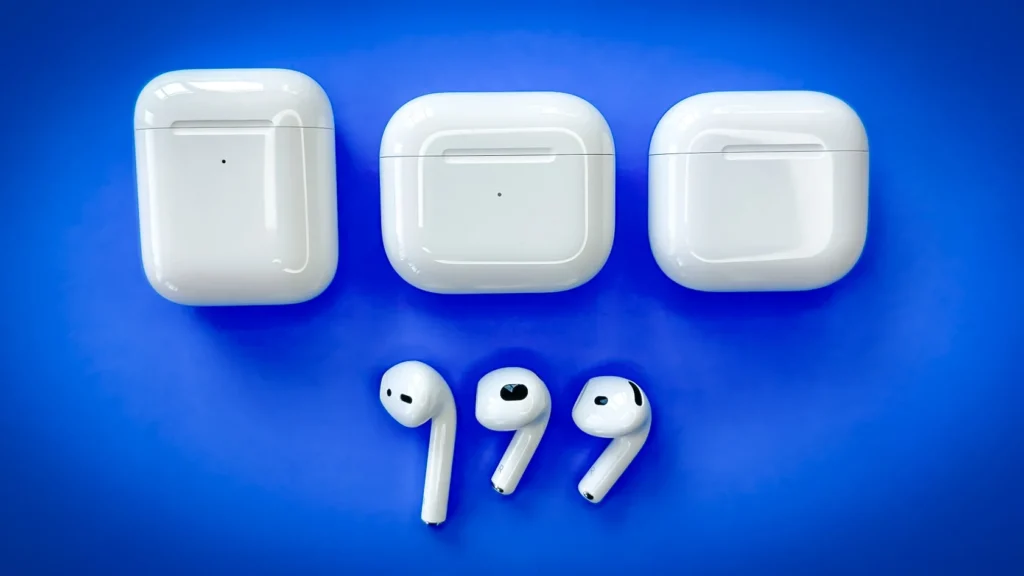
One AirPod Not Working? Here’s How to Fix It (2024 Guide)
Diagnostic Triage: Isolate the Failure Point
When a single AirPod fails to output audio, charge, or connect, you need to isolate whether the failure stems from power delivery, software pairing states, or physical debris blocking the acoustic/charging contacts.
Execute these diagnostic steps in exact order to resolve the issue efficiently.
—
Step 1: Check Battery Levels and Charging State
A completely depleted battery in one AirPod will cause it to drop connection entirely or refuse to play audio.
- Place both AirPods inside the charging case.
- Open the case lid near your paired iPhone, iPad, or Mac.
- Check the battery widget or pop-up animation on screen. Verify if the non-working AirPod shows a lightning bolt charging icon alongside the case and other AirPod.
- Physical Check: If the battery level reads 0% or the AirPod does not register at all, inspect the base of the stem and the inside of the charging case. Wipe the metal contacts gently with a dry, lint-free microfiber cloth or a clean cotton swab to remove accumulated earwax or pocket lint that blocks power transfer.
—
Step 2: Verify Audio Balance Settings
Sometimes both AirPods are functioning, but the audio output channel is software-skewed entirely to one side.
On iOS / iPadOS:
- Open Settings > Accessibility.
- Scroll down to the Hearing section and tap Audio/Visual.
- Locate the balance slider at the bottom. Ensure the balance marker is centered precisely in the middle between L and R.
On macOS:
- Open System Settings > Sound.
- Select your AirPods from the output list.
- Verify that the Balance slider is set to the center position.
—
Step 3: Clean the Speaker Mesh and Grille
Debris buildup inside the acoustic mesh can completely block sound output, making it feel like the AirPod is dead.
- Inspect the primary speaker grille and the smaller microphone mesh on the failing AirPod.
- If you see wax or debris, use a clean, dry, soft-bristled toothbrush to gently brush away surface particles.
- Do not insert sharp metal objects, paperclips, or liquid solvents into the mesh, as this will puncture the acoustic membrane and permanently ruin the driver.
—
Step 4: Reset the AirPods (Factory Reset)
If the hardware is clean and charging correctly but synchronization fails between the left and right units, a full firmware reset is required.
- Forget the Device:
On iOS: Go to Settings > Bluetooth, tap the “i” icon next to your AirPods, and tap Forget This Device.
On macOS: Go to System Settings > Bluetooth, click the “i” icon or right-click your AirPods, and select Forget This Device.
- Place both AirPods into the charging case and close the lid. Wait 30 seconds.
- Open the charging case lid.
- Press and hold the setup button on the back of the case. Keep holding it for approximately 15 seconds until the status light on the front of the case flashes amber, then flashes white.
- With the case open near your device, follow the onscreen setup prompts to reconnect and re-pair your AirPods.
—
Step 5: Test on a Secondary Device
To rule out an issue with your primary phone or computer’s Bluetooth stack:
- Pair the AirPods to a completely different smartphone, tablet, or computer.
- If the problematic AirPod still fails to work on a second host device, the internal hardware (such as the wireless receiver or internal amplifier) has suffered a physical failure, and you will need to contact Apple Support for a replacement unit.