
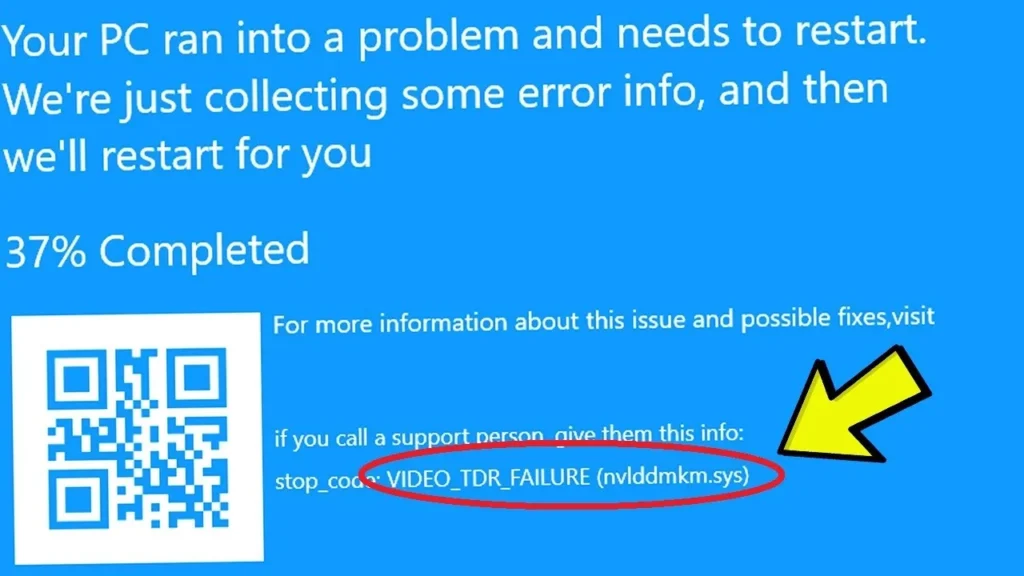
How to Fix VIDEO_TDR_FAILURE (0x00000116) nvlddmkm.sys on Windows 11
The Windows 11 stop code video_tdr_failure 0x116 occurs when the Windows display subsystem detects that the GPU has failed to complete an assigned graphics operation or respond to a preemption request within the standard Timeout Detection and Recovery (TDR) threshold (by default, 2 seconds). When the kernel attempts to reset the graphics hardware and the NVIDIA kernel-mode driver (nvlddmkm.sys) fails to acknowledge or recover from the re-initialization sequence, Windows triggers bugcheck 0x116 video_tdr_failure to prevent an unrecoverable system freeze.
The accompanying blue screen will display the error stop code video_tdr_failure 0x116 alongside the explicit driver identifier: video_tdr_failure 0x116 what failed nvlddmkm sys. While this points directly to the NVIDIA driver binary, the root cause typically stems from corrupted kernel driver caches, unstable PCIe bus clocking, power delivery dips on the 12V rail, or Multi-Plane Overlay (MPO) deadlocks inside the Desktop Window Manager (DWM).
Quick Diagnostic Matrix
| Symptom | Root Cause | Diagnostic Path / Tool | Recommended Fix |
| Crash during 3D gaming or GPU load | Stalled rendering pipeline or unstable factory VBIOS clock curve | DDU / Safe Mode | Perform a clean, offline driver sweep using DDU; install stable WHQL drivers. |
| Crash on desktop, YouTube, or Discord | Multi-Plane Overlay (MPO) or Hardware-Accelerated GPU Scheduling (HAGS) conflict | Windows Settings / Registry | Disable HAGS in Windows 11; apply the official NVIDIA MPO-disable registry patch. |
| TDR occurs under heavy multi-tasking / rendering | Windows TDR timer expires before complex computing/shading workloads finish | regedit > GraphicsDrivers | Increase TdrDelay to 8 seconds to grant additional GPU execution time. |
| BSOD occurs on boot or waking from sleep | PCIe Link State Power Management (ASPM) or PCIe riser card signal degradation | UEFI BIOS / powercfg.cpl | Set PCIe Link State to Off; force PCIe slot link speed from Auto/Gen 4 to Gen 3. |
| Error repeats across multiple driver releases | Voltage sag on 12V GPU rail or fractured solder beneath GDDR6/VRAM modules | Hardware Inspection | Inspect 12VHPWR/PCIe 8-pin power connectors; downclock memory clock by -100 MHz in Afterburner. |
1. Clean Driver Purge via DDU (video tdr failure 0x116 nvidia fix)
Standard driver installations frequently leave damaged registry entries, stale cache files, and conflicting
.inf definitions in the Windows DriverStore. When addressing the stop code video_tdr_failure 0x116 nvlddmkm sys, performing a clean uninstallation in Safe Mode prevents driver contention.[Boot Windows 11 into Safe Mode]
└── Run Display Driver Uninstaller (DDU)
├── Select Device Type: GPU > Device: NVIDIA
└── Click "Clean and restart"
└── Disconnect Internet > Install Clean WHQL Driver
- Download the latest official WHQL Game Ready or Studio Driver from NVIDIA’s website.
- Download Display Driver Uninstaller (DDU) and extract the archive to your desktop.
- Boot Windows 11 into Safe Mode:
- Hold the
Shiftkey while clicking Restart in the Start Menu. - Navigate to
Troubleshoot > Advanced options > Startup Settings > Restart. - Press
4orF4to enter Safe Mode.
- Open DDU. Under Device type, select GPU, and under Device, select NVIDIA.
- Click Clean and restart.
- Crucial: Keep your computer disconnected from the internet (unplug Ethernet or disconnect Wi-Fi) upon reboot to prevent Windows Update from automatically installing a generic display driver.
- Run the downloaded NVIDIA installer:
- Select NVIDIA Graphics Driver and GeForce Experience (or Driver Only).
- Choose Custom (Advanced).
- Check the box for Perform a clean installation.
- Restart your system and reconnect the network. This clean video tdr failure 0x116 fix resolves corrupted shader pipelines and driver registration errors.
2. Adjust TdrDelay Registry Values (video_tdr_failure 0x116 fix)
By default, the Windows kernel graphics watchdog (
dxgkrnl.sys) monitors GPU responsiveness. If the GPU takes longer than 2 seconds to process a batch of draw calls, Windows assumes hardware lockup and initiates a TDR cycle, triggering the video tdr failure 0x116 nvlddmkm.sys crash. Extending this delay prevents premature driver resets during complex compute loads.[Registry Editor (regedit)]
└── HKEY_LOCAL_MACHINESYSTEMCurrentControlSetControlGraphicsDrivers
├── New > DWORD (32-bit) Value: "TdrDelay" = 8 (Decimal)
└── New > DWORD (32-bit) Value: "TdrDdiDelay" = 8 (Decimal)
- Press
Windows Key + R, typeregedit, and press Enter to open the Registry Editor. - Navigate to the following path:Plaintext
HKEY_LOCAL_MACHINESYSTEMCurrentControlSetControlGraphicsDrivers - Right-click an empty space in the right pane, select New > DWORD (32-bit) Value, and name it:Plaintext
TdrDelay - Double-click
TdrDelay, set the base to Decimal, and enter 8 in the Value data box. This extends the GPU recovery window from 2 to 8 seconds. - Create a second DWORD (32-bit) value in the same directory and name it:Plaintext
TdrDdiDelay - Double-click
TdrDdiDelay, set the base to Decimal, and set its value to 8. (This controls the timeout for driver interface commands). - Close the Registry Editor and restart your computer to apply the updated watchdog thresholds.
3. Disable HAGS and Multi-Plane Overlay (video tdr failure fix windows 11)
Windows 11 features two advanced display pipeline technologies—Hardware-Accelerated GPU Scheduling (HAGS) and Multi-Plane Overlay (MPO)—that frequently stall the
nvlddmkm.sys scheduler when hardware video decoding and 3D rendering occur simultaneously.Step A: Disable Hardware-Accelerated GPU Scheduling
- Press
Windows Key + Ito open Settings. - Go to System > Display.
- Scroll down and click Graphics, then click Change default graphics settings.
- Toggle Hardware-accelerated GPU scheduling to Off.
- Restart your computer.
[Windows 11 Settings]
 └── System > Display > Graphics
      └── Change default graphics settings
           └── Hardware-accelerated GPU scheduling > [Toggle OFF]
Step B: Disable Multi-Plane Overlay (MPO)
MPO allows DWM to composite application surfaces independently. However, timing bugs in the NVIDIA driver stack often desynchronize frame presentation, triggering a windows stop code video_tdr_failure 0x116 during browser video playback or window minimization.
- Open
regeditas Administrator. - Navigate to:Plaintext
HKEY_LOCAL_MACHINESOFTWAREMicrosoftWindowsDwm - Right-click the
Dwmkey, select New > DWORD (32-bit) Value, and name it:PlaintextOverlayTestMode - Double-click
OverlayTestModeand set its value to 5 (which instructs DWM to bypass multi-plane overlays). - Restart your system.
4. Rebuild the nvlddmkm.sys Binary from DriverStore
If an operating system update partially overwrites the active NVIDIA driver, a version mismatch between
nvlddmkm.sys in the system directory and its companion DLLs will produce an immediate video_tdr_failure 0x116 error. You can manually reconstruct the clean system binary:- Open File Explorer and navigate to:Plaintext
C:WindowsSystem32drivers - Locate
nvlddmkm.sysand rename it tonvlddmkm.sys.old. - Navigate to the Windows DriverStore repository:Plaintext
C:WindowsSystem32DriverStoreFileRepository - Search this folder for files named
nvlddmkm.sy_ornvlddmkm.sys. Open the most recent folder prefixed withnv_dispi.inf. - If the folder contains
nvlddmkm.sy_(a compressed cabinet file):- Copy it to
C:WindowsSystem32. - Open Command Prompt as Administrator and run:DOS
cd C:WindowsSystem32
expand.exe nvlddmkm.sy_ nvlddmkm.sys
- If the folder contains an uncompressed
nvlddmkm.sys, copy it directly intoC:WindowsSystem32drivers. - Restart your PC to allow the kernel to bind the newly expanded binary.
5. Adjust Power Management and PCIe Bus States
If the GPU encounters an electrical drop or clock desynchronization while transitioning out of low-power states, the driver will hang, throwing error video_tdr_failure 0x116.
[NVIDIA Control Panel]
 └── Manage 3D Settings > Global Settings
      └── Power management mode > [Set to "Prefer maximum performance"]
- Open the NVIDIA Control Panel.
- Navigate to
3D Settings> Manage 3D settings. - Under the Global Settings tab, scroll down to Power management mode.
- Change the setting from Normal to Prefer maximum performance (or Prefer consistent performance).
- Open Windows Power Options (
powercfg.cplviaWin + R). - Click Change plan settings > Change advanced power settings.
- Expand PCI Express > Link State Power Management and set both battery and plugged-in options to Off.
6. Hardware Verification & Thermal Integrity (video_tdr_failure 0x116 reddit insights)
Community analysis across hardware diagnostic threads on Reddit (such as r/buildapc and r/nvidia) demonstrates that recurring
0x116 crashes that resist software remediation are linked to physical PCIe signaling degradation or voltage delivery faults.- PCIe Link Speed Downshift (Riser Cables): If you use a vertical GPU mounting bracket or a PCIe riser cable, signal attenuation across the extension ribbon frequently trips TDR timeouts. Enter your motherboard’s UEFI BIOS setup (
F2orDelat startup), navigate to the PCIe Subsystem / Slot Configuration, and change the primary PCIe x16 slot link speed from Auto or Gen 4 down to Gen 3. Gen 3 provides higher electrical noise tolerance while preserving over 98% of real-world rendering throughput. - 12VHPWR / PCIe Auxiliary Connectors: Inspect the power cables feeding your graphics card. High-wattage GPUs (such as RTX 30 and 40 series) require clean, dedicated 8-pin PCIe power cables from the power supply; using daisy-chained “pigtail” splitters causes transient voltage drops under load. Ensure 12VHPWR connectors are seated completely flush against the GPU socket with zero gap or bend within 35 mm of the connector head.
- VRAM Thermal Throttling: Download a monitoring tool such as HWiNFO64 and check your GPU Memory Junction Temperature under load. If GDDR6/GDDR6X temperatures exceed $105^circtext{C}$, the memory controller will drop read/write cycles, stalling the video tdr failure 0x116 nvlddmkm pipeline.
- Clock Stabilization: If running factory-overclocked cards, launch MSI Afterburner and temporarily apply a -100 MHz Core Clock and -200 MHz Memory Clock offset. If the BSOD ceases immediately, the GPU core silicon or VRAM chips have degraded below their factory VBIOS boost curve, requiring a permanent slight underclock or an RMA request.