
How to Fix DPC Watchdog Violation in Windows 11
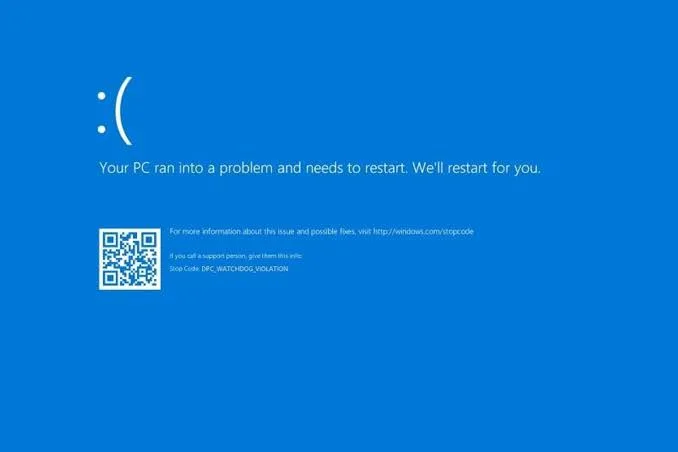
The DPC_WATCHDOG_VIOLATION stop code (Bug Check 0x00000133) occurs when the Windows 11 kernel watchdog timer detects a single Deferred Procedure Call (DPC) routine executing at DISPATCH_LEVEL interrupt request level (IRQL 2) for longer than the operating system’s timeout ceiling, or when an accumulation of nested DPCs starves the thread scheduler. This execution deadlock is almost universally triggered by out-of-sync storage controller drivers (storahci.sys vs. legacy vendor drivers), outdated NVMe SSD firmware, GPU kernel driver execution hangs, or volatile state desynchronization caused by Windows Fast Startup.
Quick Diagnostic Matrix
| Symptom | Root Cause | Setting / Path | Recommended Fix |
| Crash during disk transfers, gaming, or high file I/O | Storage controller driver deadlock or non-compliant vendor AHCI/RAID driver | devmgmt.msc > IDE ATA/ATAPI controllers | Replace OEM storage driver with Microsoft’s standard storahci.sys. |
| Crash loops shortly after booting or waking up | Fast Startup loads a corrupted kernel memory image with an unsynchronized driver queue | powercfg.cpl > Shutdown settings | Disable Fast Startup to force a cold kernel and driver initialization on boot. |
Blue screen cites nvlddmkm.sys or amdkmdag.sys | GPU driver hangs inside the graphics rendering pipeline without yielding the DPC queue | Safe Mode / Display Driver Uninstaller (DDU) | Completely wipe display drivers using DDU and install clean WHQL drivers. |
| Random freeze then BSOD on modern M.2 NVMe SSD | SSD controller locks up handling non-volatile commands due to a firmware bug | SSD OEM Utility (Samsung Magician, WD Dashboard, etc.) | Flash the latest SSD controller firmware and check drive SMART parameters. |
1. Replace the Storage Controller Driver with Standard AHCI
The single most common trigger for Bug Check
0x133 in Windows 11 is an incompatible or legacy storage controller driver (such as older iaStorA.sys or outdated third-party SATA/NVMe drivers) failing to communicate with modern power states. Forcing Windows to use its built-in Microsoft SATA AHCI driver resolves this stall.- Press
Windows Key + Xand select Device Manager (or rundevmgmt.msc). - Expand the IDE ATA/ATAPI controllers section.
- Right-click the listed controller (often named Intel Chipset SATA/PCIe RST Premium Controller or similar) and select Properties.
- Switch to the Driver tab and click Driver Details:
- If
iastor.sysor a third-party.sysfile is listed, the driver is prone to DPC timeouts. - Click OK to return to the previous screen.
- Click Update driver.
- Select Browse my computer for drivers, then click Let me pick from a list of available drivers on my computer.
- Select Standard SATA AHCI Controller from the model list.
- Click Next, finish the wizard, and restart your computer when prompted.
[Device Manager]
 └── IDE ATA/ATAPI controllers
      └── [Your Storage Controller] > Update Driver
           └── Browse my computer > Let me pick...
                └── Select "Standard SATA AHCI Controller"
2. Update NVMe SSD Controller Firmware
Modern M.2 NVMe solid-state drives rely on complex controller chips that manage wear-leveling, SLC caching, and PCIe power transitions. Firmware bugs on popular drives (notably earlier production batches of Samsung 980/990 series, Crucial P-series, and Western Digital SN-series) regularly cause the controller to freeze under burst write loads, triggering
DPC_WATCHDOG_VIOLATION.- Identify your exact SSD make and model via
diskmgmt.mscor Device Manager. - Download the proprietary maintenance dashboard from the drive manufacturer:
- Samsung: Samsung Magician
- Western Digital / SanDisk: Western Digital Dashboard
- Crucial: Crucial Storage Executive
- Kingston: Kingston SSD Manager
- Launch the utility with administrative rights.
- Navigate to the Firmware Update section.
- If an update is available, follow the on-screen steps to flash the SSD firmware.
- Perform a clean shutdown and power back on so the drive controller initializes the new microcode.
3. Disable Windows Fast Startup
Windows Fast Startup combines elements of standard cold shutdowns with hibernation by writing the Windows kernel state and session drivers to
hiberfil.sys. When the system wakes, an outdated or timing-sensitive driver often resumes with a corrupted interrupt clock, triggering a DPC watchdog alert within minutes of startup.- Press
Windows Key + R, typepowercfg.cpl, and press Enter. - Click Choose what the power buttons do in the left sidebar.
- Click the administrative shield labeled Change settings that are currently unavailable.
- Scroll down to Shutdown settings and uncheck the box next to Turn on fast startup (recommended).
- Click Save changes.
- Restart your computer to establish a clean kernel state.
4. Clean-Install Graphics Drivers Using DDU
Graphics drivers are among the most DPC-intensive components on your system. If a display driver gets stuck in an infinite processing loop while handling DirectX or Vulkan render calls, the kernel watchdog terminates the session.
- Download the latest WHQL display driver package from NVIDIA, AMD, or Intel, but do not install it yet.
- Download the latest version of Display Driver Uninstaller (DDU) and extract it to your desktop.
- Boot Windows 11 into Safe Mode:
- Hold the
Shiftkey while clicking Restart from the Start Menu. - Navigate to
Troubleshoot > Advanced options > Startup Settings > Restart. - Press
4orF4to enter Safe Mode.
- Launch DDU, set the device type to GPU, and select your graphics vendor.
- Click Clean and restart.
- Once Windows boots back to normal mode, run the clean driver installer you downloaded in Step 1. Select a Custom Installation and choose Perform a clean installation.
5. Repair the Windows Component Store and System Files
Damaged or replaced kernel system files can cause the scheduler to miscalculate DPC dispatch cycles. Running the deployment image servicing tool and system file checker replaces corrupted core system binaries.
- Press
Windows Key + S, typecmd, right-click Command Prompt, and select Run as administrator. - Run the DISM tool to repair the underlying system component store against Windows Update servers:DOS
DISM /Online /Cleanup-Image /RestoreHealth - Once the DISM operation reaches 100%, execute the System File Checker:DOS
sfc /scannow - If SFC reports that it found corrupt files and successfully repaired them, restart your PC to allow the replaced binaries to take effect.
6. Analyze the Crash Dump to Pinpoint Third-Party Drivers
If the error persists after checking storage and display drivers, a secondary driver (such as a Wi-Fi card, external audio interface, or antivirus filter driver) is holding the CPU at
DISPATCH_LEVEL.- Navigate to
C:WindowsMinidump(or locateC:WindowsMEMORY.DMP). - Download WinDbg from the Microsoft Store or use an inspection tool like BlueScreenView.
- Open the
.dmpfile inside the debugger. - Click or type:DOS
!analyze -v - Look for the lines labeled MODULE_NAME or IMAGE_NAME:
- If it flags
tcpip.sysornetadaptercx.sys: Your network adapter driver is triggering the stall (update your Intel/Realtek Wi-Fi/Ethernet drivers). - If it flags an antivirus or VPN driver (e.g.,
epfw.sys,tap0901.sys): Uninstall or update the security software suite immediately.
If your PC still crashes with
DPC_WATCHDOG_VIOLATION after a storage driver rollback, SSD firmware flash, and a clean GPU driver installation, inspect the physical SATA or NVMe connection. A failing PCIe slot, a bad SATA data cable with high CRC error counts, or an unstable memory overclock (XMP/EXPO) generating memory parity errors will disrupt hardware interrupt handling, leaving the operating system with no option other than halting via Bug Check 0x133.