
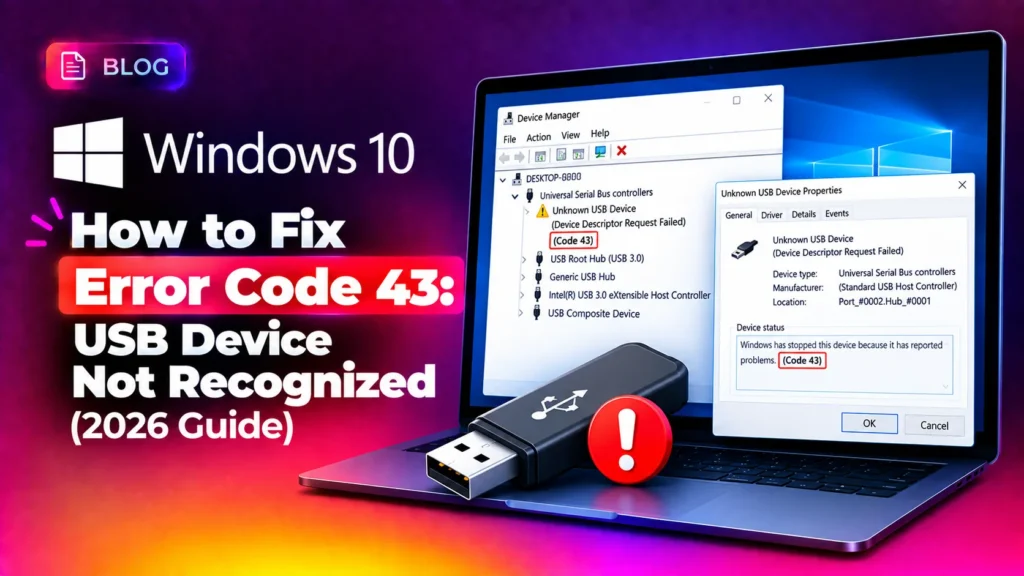
How to Fix USB Device Descriptor Failure Code 43
The Unknown USB Device (Device Descriptor Request Failed) error accompanied by Code 43 occurs when the Windows kernel USB subsystem (usbport.sys or usbhub3.sys) fails to complete an initial GET_DESCRIPTOR control transfer over Endpoint 0 during the bus enumeration sequence. If electrical noise on the differential data lines ($D+$ and $D-$), insufficient VBUS voltage delivery, a corrupted USB hub class driver stack, or persistent register locks in the host controller prevent the peripheral from returning its descriptor payload within the hardware handshake timeout window, Windows terminates port communication and halts the device.
Quick Diagnostic Matrix
| Symptom | Root Cause | Setting / Path / Tool | Recommended Fix |
| All USB ports throw Code 43 simultaneously | Saturated decoupling capacitors holding locked register states in the xHCI controller | Hardware / Power Rail | Discharge motherboard flea power via a 60-second hard power-rail drain. |
| Device fails immediately upon waking from sleep | USB Selective Suspend or Fast Startup dropping bus voltage below enumeration threshold | powercfg.cpl | Disable USB selective suspend and turn off Windows Fast Startup. |
| Device fails on front panel, works on rear I/O | Voltage sag across unshielded chassis cables or passive hub overdraw ($<4.75text{V}$) | Motherboard I/O Panel | Connect directly to rear motherboard ports; replace passive hub with powered hub. |
| Device fails across multiple different PCs | Broken $D+$ or $D-$ data line, oxidized pins, or dead peripheral microcontroller | Physical Connector / Pins | Inspect pins with magnification; clean with 99% IPA or replace cable/connector. |
| Code 43 persists despite verified hardware | Corrupted third-party filter drivers intercepting USB I/O Request Packets (IRPs) | regedit (Class GUID) | Delete corrupted UpperFilters and LowerFilters from the USB class registry key. |
1. Discharge Motherboard Flea Power (Cold Hardware Reset)
Modern USB eXtensible Host Controllers (xHCI) remain continuously energized by motherboard $+5text{VSB}$ standby rails even when the operating system is powered down. If an electrostatic discharge (ESD) event, hot-plug surge, or abnormal disconnect freezes the controller’s internal port state registers, the controller will repeatedly fail descriptor requests until power is completely bled from the board’s filter capacitors.
For Desktop Computers:
- Shut down Windows completely.
- Turn the rocker switch on the back of the power supply unit (PSU) to O (Off).
- Unplug the AC power cord from the wall outlet.
- Disconnect all external USB peripherals (drives, mice, keyboards, hubs).
- Press and hold the chassis power button for 30 seconds.
- Why this works: This drains residual capacitance (“flea power”) across the motherboard circuits, forcing the host controller firmware to reboot cold on the next initialization.
- Reconnect the power cable, switch the PSU back on, boot Windows, and plug the device directly into a rear motherboard port.
For Laptops:
- Disconnect the AC charger and detach the battery (if externally removable).
- Unplug all USB devices and docking stations.
- Press and hold the physical Power button for 60 seconds.
- Reconnect the AC adapter and turn the laptop on.
2. Disable USB Selective Suspend and Fast Startup
Windows Fast Startup restores pre-initialized kernel sessions from
hiberfil.sys, which frequently desynchronizes low-level USB polling timers during boot. Similarly, USB Selective Suspend puts inactive ports into low-power $D2$ states, often preventing peripherals from waking up in time to respond to descriptor queries.Step A: Disable USB Selective Suspend
- Press
Windows Key + R, typepowercfg.cpl, and press Enter. - Click Change plan settings next to your active power configuration.
- Click Change advanced power settings.
- In the dialogue tree, expand USB settings > USB selective suspend setting.
- Change both On battery and Plugged in to Disabled.
- Click Apply, then click OK.
[Power Options (powercfg.cpl)]
 └── Change plan settings
      └── Change advanced power settings
           └── USB settings
                └── USB selective suspend setting > [Set to DISABLED]
Step B: Disable Windows Fast Startup
- In the left-hand menu of
powercfg.cpl, select Choose what the power buttons do. - Click the shield link labeled Change settings that are currently unavailable.
- Under Shutdown settings, uncheck the box next to Turn on fast startup (recommended).
- Click Save changes and restart the machine.
3. Reinstall Host Controllers and Root Hub Stacks
If Windows’ registered enumeration table becomes corrupted in memory, uninstalling the root hub tree forces the kernel Plug and Play (PnP) manager to wipe the active hardware nodes and reload fresh INF profiles from the driver store.
- Press
Windows Key + Xand select Device Manager (or rundevmgmt.msc). - Scroll to the bottom and expand Universal Serial Bus controllers.
- Right-click Unknown USB Device (Device Descriptor Request Failed) and select Uninstall device. Confirm by clicking Uninstall.
- Right-click your primary USB Root Hub (USB 3.0) (or Generic USB Hub) and select Uninstall device.
- (Note: Your mouse or keyboard may stop responding temporarily if connected to that hub).
- Using your keyboard or physical power button, restart your PC:
- Press
Windows Key + X, pressU, then pressR.
- Upon reboot, Windows will re-read the ACPI tables and automatically reinstall
usbhub3.infandusbxchi.inf.
[Device Manager (devmgmt.msc)]
 └── Universal Serial Bus controllers
      ├── Unknown USB Device (Descriptor Failed) > Uninstall
      └── USB Root Hub (USB 3.0) > Uninstall
           └── Restart Computer (Forces hardware re-enumeration)
4. Delete Corrupted Class Upper and Lower Registry Filters
Third-party device drivers (such as virtualization tools, flashing utilities, or smartphone sync suites) often install filter drivers into the system’s USB Class registry hive. If an outdated filter driver blocks or misinterprets the
GET_DESCRIPTOR I/O Request Packet (IRP), the device drops with Code 43.- Press
Windows Key + R, typeregedit, and press Enter. - Navigate to the USB device class registry path:Plaintext
HKEY_LOCAL_MACHINESYSTEMCurrentControlSetControlClass{36fc9e60-c465-11cf-8056-444553540000} - With the
{36fc9e60...}key highlighted in the left pane, inspect the right-side values:- Look for strings named UpperFilters and LowerFilters.
- If either entry is present, right-click it and choose Delete. Confirm removal.
- Caution: Do not delete or edit any other values inside this key.
- Close the Registry Editor and reboot Windows to reload the unmodified USB driver stack.
5. Isolate Differential Data Lines and Power Sag
The USB protocol requires strict physical signal integrity. A peripheral requires $5text{V} pm 5%$ ($4.75text{V}$ to $5.25text{V}$) on Pin 1 (VBUS) to run its internal controller, while configuration handshakes are transmitted differentially across Pin 2 ($D-$) and Pin 3 ($D+$).
[USB Type-A Pin Interface]
 ┌───────────────────────┐
 │ [Pin 1: VBUS (5V)]    │ <─── Voltage sag (<4.75V) causes controller brownout
 │ [Pin 2: Data- (D-)]   │ <─── Severed/bent pin halts GET_DESCRIPTOR handshake
 │ [Pin 3: Data+ (D+)]   │ <─── High resistance/oxidation drops bit sync
 │ [Pin 4: Ground (GND)] │
 └───────────────────────┘
- Bypass Front-Panel Ports: Front-panel chassis ports rely on long, unshielded internal wiring harnesses that run adjacent to high-noise components (power supplies and GPU inductors). Connect the device directly to the rear motherboard I/O panel.
- Eliminate Unpowered Hubs: Passive (bus-powered) USB splitters divide a single 500mA–900mA port supply across multiple devices. If total power consumption drops port voltage below $4.75text{V}$, the peripheral cannot drive the differential lines, triggering a descriptor failure. Switch to a dedicated wall-powered USB hub.
- Inspect Physical Contacts: Use a direct light source to inspect the plug and port pins:
- Check whether Pin 2 or Pin 3 is bent backward, broken, or covered in debris. If the power pins make contact but the data pins do not, the device’s status LED will illuminate, but Windows will fail descriptor retrieval immediately.
- Clean dirty or oxidized pins using an interdental brush lightly moistened with 99% isopropyl alcohol (IPA).
6. Purge Stale USB Descriptors via USBDeview
Windows caches connected device descriptors in non-volatile system registry keys (
SYSTEMCurrentControlSetEnumUSB). If a device is repeatedly disconnected during an active transfer or experienced an incomplete driver install, Windows may continue loading a corrupted descriptor cache instead of querying the physical hardware.- Download the standalone diagnostic utility USBDeview (from NirSoft).
- Right-click
USBDeview.exeand select Run as administrator. - In the top toolbar, go to Options and verify that Show Disconnected Devices is checked.
- Locate entries highlighted in pink, marked as Unknown USB Device, Failed, or showing blank Vendor IDs (
0000) and Product IDs (0000). - Select all corrupted or conflicting entries, right-click, and select Uninstall Selected Devices.
- Unplug the device, restart your PC, and reconnect the peripheral to force the USB subsystem to run a complete, un-cached bus enumeration cycle from scratch.
If the peripheral continues to return
Unknown USB Device (Device Descriptor Request Failed) Code 43 across multiple separate computers (such as a second PC or a machine running a Linux live environment), the failure is isolated to the peripheral’s internal circuitry. This indicates a fractured solder joint on the USB connector footprint, a severed internal $D+$/$D-$ wire inside the cable jacket, an open-circuit pull-up resistor on the $D+$ line (which tells the host a device has connected), or a failed microcontroller on the peripheral’s PCB requiring hardware repair or physical replacement.