
How to Fix Mac Kernel Panic “Userspace Watchdog Timeout”
A Mac kernel panic caused by a userspace watchdog timeout occurs when the system watchdog daemon (watchdogd) detects that a critical userspace process—most commonly WindowServer, loginwindow, or diskarbitrationd—has deadlocked or failed to respond to its keep-alive heartbeat within the designated threshold (typically 60 to 180 seconds). Because macOS cannot maintain core display composition, session security, or filesystem operations without these processes, the kernel intentionally triggers a panic and restarts the machine to prevent an indefinite, silent system freeze.
This failure typically stems from display pipeline stalls during sleep/wake transitions with external monitors, third-party system extensions locking Grand Central Dispatch (GCD) workqueues, corrupted display configuration property lists, or unresponsive external storage drives blocking the I/O bus.
Quick Diagnostic Matrix
| Symptom / Log Signature | Root Cause | Inspection / Tool | Recommended Fix |
service: WindowServer timeout on sleep/wake or lid close | Display pipeline hang, Thunderbolt dock sleep desync, or stale display plist | Panic Log / Console.app | Delete /Library/Preferences/com.apple.windowserver.displays.plist; bypass docks. |
service: diskarbitrationd or disk I/O hang | Unresponsive external APFS/exFAT drive or failing internal SSD blocking the main thread | Terminal / diskutil | Disconnect all external storage; run fsck_apfs / First Aid on internal storage containers. |
Panic references third-party .kext or .systemextension | Endpoint security, VPN, or virtual audio drivers blocking GCD queues | Terminal (systemextensionsctl) | Boot into Safe Mode; uninstall conflicting kernel/system extensions. |
| Random timeouts while running display utility apps | App injecting private display APIs (e.g., BetterDisplay, SwitchResX, Magnet) | Activity Monitor | Uninstall virtual display managers; update monitor firmware; disable DDC/CI control. |
| Persistent watchdog panics on fresh OS / Apple Silicon | Corrupted BridgeOS / SoC power management firmware or hardware logic failure | Apple Diagnostics / Configurator | Run Apple Diagnostics (Cmd + D); perform an Apple Configurator DFU Revive. |
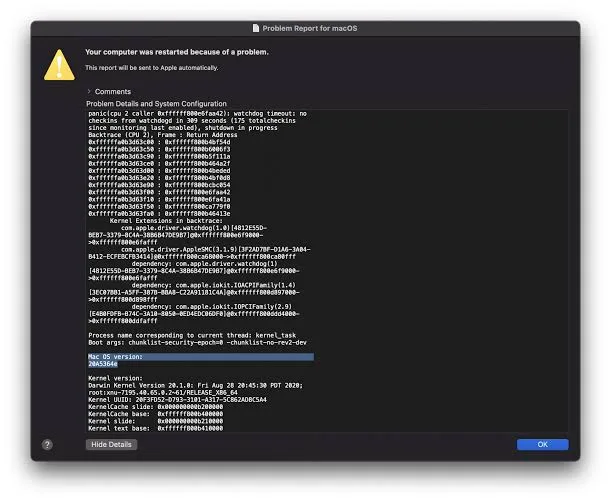
1. Extract and Identify the Culprit Process from the Panic Log
Before modifying system configurations, inspect the panic report to identify the exact service that timed out.
[System Crash / Reboot]
 └── Open Console.app > Crash Reports (or navigate to /Library/Logs/DiagnosticReports)
      └── Open the latest ".panic" or ".ips" file
           └── Locate the Header String:
                "panic(cpu X caller ...): Userspace watchdog timeout:
                 main thread of [TARGET_SERVICE] has not had run loop activity..."
[Watchdog Architecture]
 ┌────────────────────────────────────────────────────────┐
 │ Userspace Daemons (WindowServer / diskarbitrationd)    │
 └──────────────────────────┬─────────────────────────────┘
                            │ Heartbeat Ping (Mach Port / GCD)
                            ▼
              ┌───────────────────────────┐
              │ watchdogd (Watchdog Daemon)│
              └─────────────┬─────────────┘
                            │ [NO RESPONSE > 120s]
                            ▼
 ┌────────────────────────────────────────────────────────┐
 │ XNU Kernel Panic Call ──► Immediate Forced Reboot      │
 └────────────────────────────────────────────────────────┘
After the Mac reboots, open Console.app from Spotlight or
/Applications/Utilities.In the left sidebar, click Crash Reports (or navigate to
/Library/Logs/DiagnosticReportsin Finder).Search for files ending in
.panicor.ipsstarting withpanic-full.Open the file and locate the top lines of the backtrace:
service: WindowServer: The graphics compositor froze. This points to external monitors, GPU drivers, Thunderbolt docks, or display configuration utilities.service: diskarbitrationd: The disk management service deadlocked while attempting to mount, unmount, or query a storage volume.service: loginwindow: User session authentication stalled, often caused by corrupted security daemons (opendirectoryd) or MDM profile conflicts.service: corebrightnessd: Display backlight/TrueTone communication timed out over the I2C/SMbus bus.
2. Fix WindowServer Watchdog Timeouts (Display & Dock Fixes)
Over 80% of userspace watchdog timeouts involve WindowServer. During sleep/wake transitions, the graphics compositor queries connected displays over the Display Data Channel (DDC/CI). If an external monitor, USB-C/Thunderbolt dock, or DisplayLink adapter fails to return its EDID handshake in time, WindowServer stalls its main event runloop, tripping watchdogd.
[Terminal Execution Path]
 └── sudo rm /Library/Preferences/com.apple.windowserver.displays.plist
 └── rm ~/Library/Preferences/ByHost/com.apple.windowserver.displays.*.plist
 └── killall WindowServer
Delete Corrupted WindowServer Configuration Files:
Stale multi-monitor arrangements and invalid color profiles can lock the display compositor.
Open Terminal and remove the global and user display preferences:
Bashsudo rm /Library/Preferences/com.apple.windowserver.displays.plist rm ~/Library/Preferences/ByHost/com.apple.windowserver.displays.*.plistRestart your Mac. macOS will automatically regenerate pristine display configuration matrices.
Isolate Display Cables & Docks:
Disconnect all multi-port USB-C/Thunderbolt docks, adapters, and secondary displays.
Connect a single external monitor directly to the Mac using a certified Thunderbolt 4 / USB4 or high-grade DisplayPort to USB-C cable (avoid HDMI-to-USB-C passive adapters, which are notorious for dropping sleep/wake handshakes).
Disable DDC/CI in Monitor On-Screen Display (OSD):
Using the physical buttons on your external monitor, open its OSD menu.
Locate DDC/CI (Display Data Channel / Command Interface) and set it to Off. This stops macOS and third-party software from polling monitor hardware registers directly.
Remove Third-Party Display Management Utilities:
Uninstall or completely disable applications that manipulate display resolutions, virtual displays, or gamma curves (e.g., BetterDisplay, SwitchResX, MonitorControl, f.lux, or DisplayLink Manager). If these apps attempt to write to display registers while the GPU is entering a low-power sleep state,
WindowServerwill freeze.
3. Audit and Remove Conflicting System Extensions
Security agents, virtualization tools, and virtual network/audio adapters install System Extensions and LaunchDaemons that hook deeply into low-level queues. If an extension deadlocks while waiting for network I/O or disk access, it blocks system threads from completing their dispatch cycles.
[System Extension Audit Workflow]
 Terminal > systemextensionsctl list
  ├── Check for: CrowdStrike, SentinelOne, Little Snitch, VirtualBox, BlackHole
  └── Identify State: [activated enabled]
Open Terminal and inspect all active userspace system extensions:
Bashsystemextensionsctl listInspect third-party background daemons:
Bashlaunchctl list | grep -v com.appleCheck the physical directory trees where persistent startup agents live:
/Library/LaunchDaemons//Library/LaunchAgents//Library/SystemExtensions/
Isolate the Conflict via Safe Mode:
Apple Silicon (M-Series): Shut down the Mac. Press and hold the Power (Touch ID) button until “Loading startup options” appears. Select your drive, press and hold the Shift key, and click Continue in Safe Mode.
Intel Macs: Restart the Mac and immediately press and hold the Shift key until the login window appears.
Mechanism: Safe Mode clears kernel and dyld shared caches, disables all non-essential third-party LaunchDaemons and System Extensions, and forces software rendering.
If the watchdog timeout does not occur in Safe Mode, delete third-party security software (e.g., legacy antivirus suites, deep-packet firewalls) and audio drivers (e.g., Soundflower, Loopback, BlackHole) using their official uninstallation packages.
4. Resolve Storage I/O Stalls (diskarbitrationd Timeouts)
If the panic log points to diskarbitrationd, the disk arbitration daemon timed out while waiting for a storage volume to mount, verify dirty journal blocks, or unmount during a shutdown/sleep request.
[Disk Check Sequence]
 1. Disconnect all external SSDs, HDDs, and SD Cards.
 2. Terminal > diskutil list
 3. Run non-destructive live filesystem check:
    sudo fsck_apfs -n -l /dev/disk1s1 (Replace with your APFS Container)
Disconnect All External Storage: Remove all external SSDs, USB flash drives, SD cards, and network-attached storage (NAS) mounts. A corrupted external drive with unreadable bad sectors will stall
diskarbitrationdindefinitely when the system polls the bus.Verify Internal APFS Container Integrity:
Open Terminal and run:
Bashdiskutil verifyVolume /If errors are reported, boot into macOS Recovery Mode:
Apple Silicon: Hold Power button on boot > select Options > click Continue.
Intel: Hold
Command + Ron boot.
Open Disk Utility, select View > Show All Devices, select your internal container disk (e.g.,
Apple SSD), and click First Aid.
Turn Off Network Drive Auto-Mounting:
Go to
System Settings > General > Login Items.Under Open at Login, remove any network volumes, SMB shares, or third-party backup mounts that could hang if the network drops before the drive unmounts.
5. Clear NVRAM and Reset Power Subsystems
Corrupted non-volatile RAM state tables or Power Management Controller (PMC/SMC) register locks can disrupt the power orchestration signals exchanged between the CPU and display subsystems.
For Intel Macs:
Reset NVRAM/PRAM:
Shut down your Mac.
Turn it on and immediately press and hold Option + Command + P + R simultaneously.
Hold the keys for roughly 20 seconds (or through two startup chimes / Apple logos), then release.
Reset the SMC (System Management Controller):
MacBooks with T2 Security Chip: Shut down > press and hold Control + Option + Shift on the built-in keyboard for 7 seconds, then press and hold the Power button as well for another 7 seconds. Release all keys, wait 5 seconds, and power on.
Desktop Macs (iMac, Mac mini, Mac Pro): Unplug the power cord for 15 seconds, plug it back in, wait 5 seconds, and power on.
For Apple Silicon Macs (M1/M2/M3/M4/M5):
Apple Silicon handles SMC and NVRAM parameters natively in hardware; a full hardware shutdown followed by a cold boot after 30 seconds of zero power performs an automated NVRAM parameter self-test and hardware controller re-calibration.
6. Run Hardware Diagnostics and Perform DFU Revive
If userspace watchdog timeouts persist on a clean operating system with no external peripherals attached, the issue is often caused by an intermittent fault on the unified memory (UMA) bus, an onboard GPU failure, or corrupted firmware on the T2 / Apple Silicon Secure Enclave.
[Apple Diagnostics Hardware Test]
 ├── Apple Silicon: Hold Power button from complete shutdown > Press Command + D
 └── Intel Macs:    Power on and immediately press and hold the D key
Run Apple Diagnostics:
Follow the steps above to launch diagnostics.
Connect your Mac to an AC power adapter and allow the test to run.
Note any error codes returned:
ADP000: No issues found (points back to complex software/firmware failure).
VFDxxx: Display or GPU hardware failure.
PPMxxx / PFMxxx: Power management / controller hardware fault.
DFU Revive via Apple Configurator:
If you have access to a secondary Mac, connect the two using an authentic USB-C data cable plugged into the specific DFU port (refer to Apple’s port configuration guide for your specific model).
Put the failing Mac into DFU mode.
Open Apple Configurator on the host Mac.
Select the target device, right-click, and select Advanced > Revive Device.
Mechanism: A “Revive” updates the low-level BridgeOS and bootloader firmware without wiping your internal storage, resolving underlying hardware watchdog sync deadlocks.
If the watchdog timeout continues to trigger panics following an APFS disk sweep, deletion of display preferences, removal of third-party extensions, and an Apple Configurator revive, the fault is isolated to a physical component failure. On modern Macs, this indicates degraded unified memory (RAM) channels, failing voltage regulators on the motherboard’s display PHY rail, or internal silicon breakdown within the SoC’s integrated GPU, necessitating a logic board replacement through Apple Service.