
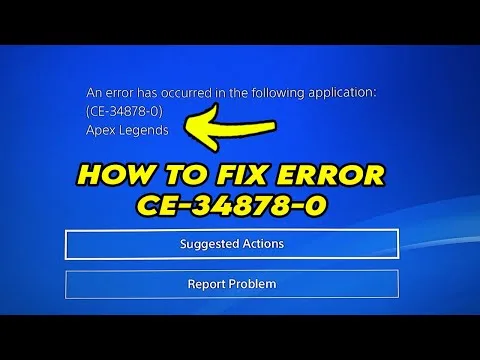
What “CE-34878-0” Means on PS4 & How to Fix It
PS4 error code CE-34878-0 is the console’s generic unhandled exception handler, indicating that an active game or application has terminated unexpectedly due to a software crash or memory segmentation fault (SIGSEGV) within FreeBSD-based Orbis OS. When an application attempts to access an invalid memory address in the shared $8text{ GB}$ GDDR5 pool, processes corrupted save data, encounters an unhandled null pointer in game code, or reads corrupted asset files off a failing internal hard drive, the operating system kernel steps in, terminates the process to protect system stability, and returns: “An error has occurred in the following application. (CE-34878-0)”.
Quick Diagnostic Matrix
| Symptom | Root Cause | Inspection / Tool | Recommended Fix |
| Crash occurs only in a specific game after an update | Unhandled game code bug, memory leak, or version mismatch with system firmware | Options button > Check for Update | Install the latest game patch; update PS4 system software to the latest build. |
| Crash triggers immediately upon loading a specific save file | Corrupted binary structure or checksum mismatch inside the saved game file | Saved Data Management | Back up save to cloud/USB, delete local save file, and load an earlier auto-save. |
| Crash occurs right at title screen or when booting games | PlayStation Camera facial recognition daemon conflicting with user login state | PS4 Settings > Devices | Unplug the PlayStation Camera; disable Enable Face Recognition in Login Settings. |
| Crash happens randomly across multiple unrelated games | Corrupted SQLite system indexing or fragmented application directory records | Safe Mode | Boot into Safe Mode and execute Rebuild Database (Option 5). |
| Crash accompanied by stuttering, freezing, or slow dashboard | Failing internal 2.5″ mechanical hard drive (bad LBA sectors holding game assets) | Drive S.M.A.R.T. / CrystalDiskInfo | Initialize console (Safe Mode Option 6/7) or replace internal HDD with a 2.5″ SATA SSD. |
1. Update Game Application and System Software
Because CE-34878-0 is frequently an unhandled software bug, developers regularly patch memory leaks and null-pointer exceptions via over-the-air updates. An SDK version mismatch between an older game build and newer PS4 system software will also trip this error.
[Software Verification Flow]
 ├── Game Application ──► Highlight Game > Press [Options] > "Check for Update"
 └── PS4 Firmware     ──► Settings > System Software Update > Install Latest Version
Highlight the crashing game on the PS4 Home Screen or in the Library.
Press the physical Options button on the DualShock 4 controller.
Select Check for Update. If an update is available, download and install it completely before launching the title.
Navigate to Settings > System Software Update on the console dashboard.
If an update is pending, allow the console to download, install, and restart.
2. Eliminate Corrupted Save Data and User Profiles
A corrupted save file is one of the most common causes of CE-34878-0 occurring during loading screens or after pressing “Continue.” When the game parser attempts to unpack corrupted binary data or an invalid checksum into system memory, it causes an instant segmentation fault.
[Save Data Isolation Path]
 ┌────────────────────────────────────────────────────────┐
 │ PS4 Internal Storage: Saved Data Management            │
 │   ┌──────────────────────────┐  ┌──────────────────┐   │
 │   │ Upload to PS Plus Cloud  │  │ Copy to USB Drive│   │ <── PRESERVE BACKUP
 │   └──────────────────────────┘  └──────────────────┘   │
 └──────────────────────────┬─────────────────────────────┘
                            ▼
              [Delete Local Save from Console]
                            ▼
           [Launch Game with Fresh Profile / New Save]
Back Up Existing Saves:
Go to Settings > Application Saved Data Management > Saved Data in System Storage.
Select Upload to Online Storage (if subscribed to PlayStation Plus) or Copy to USB Storage Device to preserve your progress before testing.
Delete Local Game Save Data:
In the same menu, select Delete.
Highlight the affected game and select the most recent save file (or all save files for that title) and confirm deletion.
Test the Game:
Launch the game and start a new session.
If the game runs without crashing, the previous save file was corrupted. Restore an older secondary backup from the cloud or USB, avoiding the specific corrupted file.
3. Disable PlayStation Camera and Facial Recognition
A documented firmware-level memory management conflict exists between the Orbis OS login daemon and the PlayStation Camera. If the camera is continuously tracking facial profiles while a game requests biometric or user authentication checks, the camera background daemon can leak memory, triggering CE-34878-0 upon game boot.
[Settings Menu]
 ├── Devices > PlayStation Camera ──► Disconnect physical AUX/USB connector
 └── Login Settings
      └── [UNCHECK] "Enable Face Recognition" ──► Restart Console
Physically unplug the PlayStation Camera cable from the proprietary AUX port (or USB port) on the rear of the PS4.
On the dashboard, navigate to Settings > Login Settings.
Locate Enable Face Recognition and uncheck the box.
Restart the console completely.
4. Rebuild the PS4 System Database via Safe Mode
Improper shutdowns (power outages, pulling the power cord) or crashes during background downloads corrupt the PS4’s internal SQLite database. Rebuilding the database repairs file-table indexing, reorganizes fragmented data blocks, and purges damaged temporary cache files.
[PS4 Safe Mode Boot Flow]
 1. Power console completely OFF (Confirm light bar is dark, NOT orange).
 2. Press and hold front [Power Button].
 3. Beep 1 sounds (Initial touch) ──► Keep holding for 7 seconds.
 4. Beep 2 sounds (Safe Mode signal) ──► Release button immediately.
 5. Connect DualShock 4 with USB DATA cable ──► Press [PS Button].
 6. Navigate to: Option 5 [Rebuild Database].
Turn off the PS4 completely (ensure it is not in Rest Mode).
Press and hold the physical Power button on the front of the console.
You will hear an initial beep upon pressing; continue holding for roughly 7 seconds until you hear a second beep, then release the button.
Connect your DualShock 4 controller to the console using a verified USB data/charge cable and press the PS button.
In the Safe Mode menu, scroll down to 5. Rebuild Database and press X.
Select OK to confirm.
Note: This process does not delete your game installations, save data, or media captures. Depending on how many games are installed on the drive, it takes anywhere from 5 minutes to an hour to reconstruct the filesystem index.
5. Reinstall the Application and Clear Flea Power
If specific game textures, executables, or audio containers were written onto unreadable or damaged sectors during installation, reading those specific assets will consistently trigger CE-34878-0 at the exact same location in the game.
[Reinstallation & Flea Power Drain Sequence]
 1. Delete Application from Dashboard (Options > Delete).
 2. Power off console completely.
 3. Unplug AC Power Cord from wall outlet for 60 Seconds.
 4. Hold Power Button for 15s (Discharges motherboard capacitors).
 5. Reconnect AC power > Boot > Reinstall game from Disc / PS Store.
Highlight the problem game on the home screen, press the Options button, and select Delete.
Once uninstalled, power off the PS4 completely.
Unplug the AC power cord from the wall outlet and disconnect all external USB accessories.
Press and hold the console’s physical Power button for 15 seconds to bleed residual electrical capacitance from the motherboard’s power delivery stages.
Reconnect the AC power cord and power on the console.
Reinstall the game:
Disc: Insert the disc and allow it to copy completely to the drive before launching.
Digital: Redownload the game from your Library, ensuring the download and all patches finish without pausing or network drops.
6. Diagnose and Replace the Internal Hard Drive (HDD)
If error CE-34878-0 occurs across multiple unrelated games, or if the console experiences system-level hitching, audio desync, slow dashboard navigation, and recurring database rebuild prompts, the stock mechanical 2.5-inch hard drive is failing due to physical bad sectors or read/write head degradation.
[Hard Drive Replacement & System Initialization]
 ┌────────────────────────────────────────────────────────┐
 │ PS4 2.5" Drive Bay                                     │
 │ ┌───────────────────────────┐                          │
 │ │ Old 2.5" Mechanical HDD   │ ──► [Swap with 2.5" SATA SSD]
 │ └───────────────────────────┘                          │
 └────────────────────────────────────────────────────────┘
                            │
                            ▼
 [Safe Mode Option 7: Initialize PS4 (Reinstall System Software)]
  └── USB Drive (FAT32/exFAT): /PS4/UPDATE/PS4UPDATE.PUP (~1.1 GB Recovery File)
Step A: Verify HDD Health via PC (Optional)
Slide open the HDD bay cover (top left glossy plate on PS4 Fat; rear plastic latch on Slim/Pro).
Remove the single retaining screw engraved with the $trianglebigcirctimessquare$ symbols and slide out the drive sled.
Connect the drive to a PC via an external SATA-to-USB adapter.
Open CrystalDiskInfo:
If health reads Caution or Bad with counts on ID 05 (Reallocated Sectors), ID C5 (Current Pending Sectors), or ID C6 (Uncorrectable Sectors), the physical drive platters are degrading and directly causing data corruption.
Step B: Replace with a 2.5-inch SATA SSD
Swapping the mechanical drive for an inexpensive 2.5-inch SATA III SSD (e.g., Crucial MX500, Kingston A400, or Samsung 870 EVO) permanently eliminates mechanical drive failures and drastically cuts game load times.
Mount the new SSD into the metal drive sled using the four side screws, reinsert it into the console, and secure the main retaining screw.
Prepare a USB flash drive (32 GB or smaller, formatted to FAT32 or exFAT).
On the USB drive, create a folder named
PS4. Inside that folder, create a subfolder namedUPDATE.Download the PS4 Complete System Software Reinstallation File from the official PlayStation website (verify file size is approximately 1.1 GB, not the 400 MB incremental update).
Save the file as
PS4UPDATE.PUPinside theUPDATEfolder (path:X:PS4UPDATEPS4UPDATE.PUP).Plug the USB drive into the PS4, boot into Safe Mode (hold power for two beeps), and select Option 7: Initialize PS4 (Reinstall System Software).
Follow the on-screen prompts to format the SSD and install a fresh copy of Orbis OS.
If CE-34878-0 continues to crash games immediately after replacing the internal hard drive with a brand-new SSD and performing a full clean reinstallation of the system software, the fault is an unrecoverable hardware breakdown on the motherboard. This indicates that one or more of the high-speed GDDR5 unified memory modules have developed cracked solder joints (BGA fatigue) or internal silicon failure, or the APU (Accelerated Processing Unit) is encountering memory bus read errors under 3D load, requiring professional board-level BGA rework (reballing) or console replacement.