
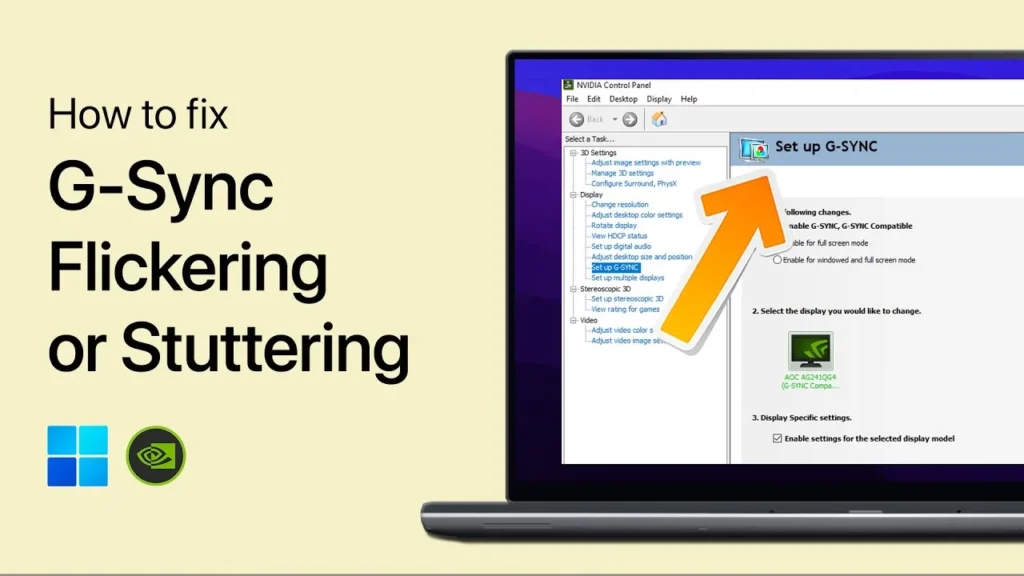
How to Fix Screen Flickering with G-Sync Enabled
Screen flickering with NVIDIA G-Sync (or G-Sync Compatible / VESA Adaptive-Sync) occurs when sudden frametime fluctuations cause rapid, dynamic shifts in the display panel’s refresh rate. Because LCD (especially VA) and OLED panels require varying driving voltages to maintain target luminance across different refresh frequencies, rapid shifts between low and high refresh rates alter the subpixel gamma curve. When framerates drop below the monitor’s minimum Variable Refresh Rate (VRR) threshold (typically $40text{ Hz}–48text{ Hz}$), Low Framerate Compensation (LFC) engages, instantly doubling or tripling frames (e.g., jumping from $42text{ Hz}$ to $84text{ Hz}$). This sudden change in refresh rate causes visible brightness pulsing or micro-strobing.
In windowed applications, this instability is compounded by Windows Desktop Window Manager (DWM) Multi-Plane Overlay (MPO) conflicts, background hardware-accelerated apps polling at $60text{ Hz}$, or display cable bandwidth limits.
Quick Diagnostic Matrix
| Symptom | Root Cause | Inspection / Tool | Recommended Fix |
| Rapid brightness pulsing during loading screens or static menus | Framerate dipping below the VRR floor, causing LFC refresh-rate multiplication | Frametime Graph / OSD | Narrow the VRR range using Custom Resolution Utility (CRU); cap minimum FPS; toggle monitor VRR Control. |
| Flickering occurs across desktop windows, Discord, or Chrome | G-Sync polling background hardware-accelerated 2D windows | NVIDIA Control Panel | Set G-Sync strictly to Enable for full screen mode; disable browser hardware acceleration. |
| Intermittent full-black screen drops (1–2 seconds) during gameplay | Multi-Plane Overlay (MPO) desync inside DWM or DisplayPort link training loss | Windows Registry (regedit) | Apply the MPO-disable registry tweak; replace cable with a certified VESA DP 1.4/2.1 cable. |
| Flickering occurs only near the monitor’s maximum refresh rate | GPU constantly transitioning between G-Sync and standard V-Sync ceiling | RTSS / In-Game FPS Cap | Cap framerate 3 to 4 FPS below the maximum refresh rate; enable V-Sync in NVIDIA Control Panel. |
| Inverted ghosting or bright coronas behind moving objects | Overdrive circuit applying excessive voltage at lower dynamic refresh rates | Monitor OSD | Switch monitor Overdrive setting from Extreme/Fastest to Normal/Standard or use Variable Overdrive. |
1. Apply the Optimal G-Sync + V-Sync + Frame Cap Configuration
A frequent cause of high-framerate G-Sync flickering is the framerate hovering directly on the display’s maximum refresh ceiling (e.g., jumping between $142text{ FPS}$ and $145text{ FPS}$ on a $144text{ Hz}$ panel). When this occurs, the GPU driver rapidly engages and disengages the G-Sync timing module, causing the panel’s internal scaler to repeatedly renegotiate sync parameters.
[The Optimal VRR Pipeline]
 ┌────────────────────────────────────────────────────────┐
 │ Monitor Hardware Refresh Ceiling: 144 Hz               │
 ├────────────────────────────────────────────────────────┤
 │ [Max FPS Cap: 141 FPS] ──► Prevents hitting 144 Hz cap │
 │ [NVIDIA V-Sync: ON]    ──► Ensures proper frame pacing │
 │ [G-Sync: ENABLED]      ──► Dynamic hardware sync       │
 └────────────────────────────────────────────────────────┘
   ▲
   └── Result: 100% G-Sync engagement with ZERO V-Sync input lag.
Open the NVIDIA Control Panel.
Navigate to Display > Set up G-SYNC:
Ensure Enable G-SYNC, G-SYNC Compatible is checked.
Navigate to 3D Settings > Manage 3D Settings > Global Settings:
Locate Monitor Technology: Select G-SYNC / G-SYNC Compatible.
Locate Vertical sync: Change it to On. (In-driver V-Sync enforces frame pacing and eliminates tearing at the bottom of the screen without introducing traditional V-Sync buffer latency when combined with a frame limiter).
Locate Max Frame Rate: Set it to 3 to 4 FPS below your monitor’s maximum refresh rate:
$144text{ Hz}$ Monitor $rightarrow$ Cap at $141text{ FPS}$
$165text{ Hz}$ Monitor $rightarrow$ Cap at $160text{ FPS}$
$240text{ Hz}$ Monitor $rightarrow$ Cap at $236text{ FPS}$
Locate Low Latency Mode: Set to Ultra (or enable NVIDIA Reflex inside supported games, which automatically applies this frame rate ceiling).
In games, disable in-game V-Sync and use the game’s internal frame limiter or RivaTuner Statistics Server (RTSS) if preferred.
2. Restrict G-Sync to Fullscreen Only
By default, NVIDIA allows G-Sync to hook into both fullscreen and windowed applications. If you run a game in borderless windowed mode alongside hardware-accelerated desktop apps (such as Discord, Spotify, Steam, or web browsers), the desktop compositor attempts to sync the monitor to both the $144text{ Hz}$ game and the $60text{ Hz}$ background window, causing severe refresh rate stutter and flickering.
[NVIDIA Control Panel]
 └── Display > Set up G-SYNC
      ├── (•) Enable for full screen mode         <── [RECOMMENDED]
      └── ( ) Enable for windowed and full screen mode
Open the NVIDIA Control Panel.
Go to Display > Set up G-SYNC.
Under 1. Apply following settings, select Enable for full screen mode.
Click Apply.
If you must use Windowed and full screen mode:
Open your web browser (Chrome/Edge/Firefox), go to Settings > System, and toggle Use graphics acceleration when available to Off.
Open Discord, go to User Settings > Advanced, and toggle Hardware Acceleration to Off.
3. Mitigate VRR Brightness Strobing (VA/OLED Panels & CRU Tweak)
On VA and OLED gaming monitors (such as Samsung Odyssey or LG UltraGear OLEDs), each pixel’s brightness is tied to the electrical charge applied during the refresh cycle. When a game enters a loading screen, static map, or menu, framerates often drop dramatically (e.g., down to $20text{–}30text{ FPS}$).
When framerate dips below the panel’s lower threshold ($48text{ Hz}$), the GPU’s Low Framerate Compensation (LFC) repeatedly doubles and halves the refresh rate ($35text{ Hz} rightarrow 70text{ Hz} rightarrow 35text{ Hz}$), producing rapid fluctuations in brightness.
[LFC Refresh Rate Transition]
 Game FPS:   60 FPS ──► 50 FPS ──► [40 FPS Floor] ──► 35 FPS (Below Floor)
 Panel Hz:   60 Hz  ──► 50 Hz  ──► 40 Hz           ──► 70 Hz (LFC Doubles Frames!)
                                                       ▲
                                                       └── [SUDDEN BRIGHTNESS SPIKE]
Method A: Enable “VRR Control” in Monitor OSD (Samsung Odyssey Monitors)
If you are using a Samsung Odyssey (G7, G9, Neo, OLED) monitor:
Open the monitor’s physical OSD Menu using the directional joystick.
Navigate to System (or Game on older firmware).
Locate VRR Control and set it to ON.
Mechanism: This forces the monitor’s internal scaler to smooth out micro-voltage shifts across the panel during rapid refresh rate drops, eliminating brightness flicker.
Method B: Adjust the VRR Range Using Custom Resolution Utility (CRU)
If your monitor lacks a hardware VRR smoothing toggle, adjusting the lower G-Sync boundary eliminates erratic LFC cycling:
[CRU Execution Flow]
 Launch CRU.exe > Select Active Display > Edit "CTA-861 / DisplayID extension block"
  └── FreeSync / VRR Data Block ──► Edit "Range Limits" (e.g., change 40-144Hz to 48-144Hz)
       └── Restart graphics driver using "restart64.exe"
Download Custom Resolution Utility (CRU).
Run
CRU.exeas Administrator.Select your active display from the top drop-down menu.
Under the Extension blocks section, double-click CTA-861 (or DisplayID).
Double-click the FreeSync / Adaptive-Sync / VRR data block.
Locate the Range limits:
If the lower limit is set too low (e.g., $30text{ Hz}$ or $40text{ Hz}$), increase it to $48text{ Hz}$ or $55text{ Hz}$.
Increasing the floor forces LFC to engage predictably and cleanly before severe gamma shifts can occur.
Click OK on all dialog boxes.
In the CRU folder, run
restart64.exeto restart the Windows graphics driver stack without rebooting your PC.
4. Disable Multi-Plane Overlay (MPO) in the Windows Registry
Windows Desktop Window Manager (DWM) uses Multi-Plane Overlay (MPO) to render separate visual planes (video playback, game surfaces, desktop overlays) independently. When G-Sync tries to adapt the panel refresh rate to an active 3D game surface while MPO renders a static 2D overlay at a fixed rate, the surfaces fall out of sync, causing black-screen flickers.
[Registry Editor (regedit)]
 └── HKEY_LOCAL_MACHINESOFTWAREMicrosoftWindowsDwm
      └── New > DWORD (32-bit) Value: "OverlayTestMode" = 5 (Hexadecimal)
Press
Windows Key + R, typeregedit, and hit Enter.Navigate to:
PlaintextHKEY_LOCAL_MACHINESOFTWAREMicrosoftWindowsDwmRight-click the
Dwmfolder in the left navigation pane, select New > DWORD (32-bit) Value, and name it:PlaintextOverlayTestModeDouble-click
OverlayTestMode, verify the base is Hexadecimal, and set the Value data to:Plaintext5Click OK and restart your computer. This forces Windows DWM to fall back to traditional desktop composition, eliminating MPO timing collisions with G-Sync.
5. Adjust Monitor Overdrive and Variable Overdrive Settings
Many gaming monitors apply pixel overdrive to speed up liquid crystal transitions and reduce motion blur. Standard overdrive applies a static voltage regardless of refresh rate; at lower variable refresh rates, this static voltage overshoots the target color value, causing visible reverse ghosting (coronas) that looks like strobing or flickering during movement.
[Monitor Physical OSD Navigation]
 └── Gaming / Picture Settings > Response Time / Overdrive
      ├── Extreme / Fastest  ──► (Aggressive overshoot at < 100 Hz; causes flicker)
      ├── Fast / Normal      ──► [RECOMMENDED STABLE SWEET SPOT]
      └── Variable Overdrive ──► [ENABLED] (If supported by G-Sync module)
Open your monitor’s OSD Menu using the physical buttons.
Locate the Response Time, Overdrive, or Trace Free setting.
Lower the setting from its maximum (e.g., switch from Fastest / Extreme down to Fast, Standard, or Normal).
On monitors with dedicated hardware G-Sync modules (G-Sync Ultimate), verify that Variable Overdrive is active in the menu so overdrive voltage scales downward proportionally with refresh rate drops.
6. Perform a Clean Driver Sweep (DDU) & Check Physical Cabling
Stale configuration profiles and corrupted G-Sync handshake records in the graphics driver store can destabilize link training. Substandard cables also struggle to maintain link stability under the high bandwidth demands of variable refresh rates combined with 10-bit color and HDR.
[DisplayPort Signal Degradation Path]
 GPU PHY (HBR3 Link) ═════ (Substandard / Non-VESA Cable) ═════► Monitor Scaler (DPCD)
                                   │
                                   ▼
             [PACKET LOSS DURING REFRESH MODULATION ──► BLACK FLICKER]
Perform a Clean GPU Driver Installation:
Download the latest NVIDIA Game Ready Driver and Display Driver Uninstaller (DDU).
Boot Windows into Safe Mode (Hold
Shiftwhile clicking Restart > Troubleshoot > Advanced Options > Startup Settings > Restart > press4).Launch DDU, select GPU and NVIDIA, then click Clean and restart.
Install the downloaded NVIDIA driver, checking the box for Perform a clean installation.
Inspect DisplayPort Bandwidth and Cabling:
G-Sync requires stable, high-bandwidth physical communication across the DisplayPort AUX/DPCD channels. Ensure you are using an official VESA-certified DisplayPort 1.4 or 2.1 cable (DP8K/UHBR certified).
The Pin 20 Issue: Non-certified DisplayPort cables that bridge Pin 20 send a parasitic $3.3text{V}$ current back into the graphics card, destabilizing the display clock generator and causing black-screen drops when refresh rates change.
Bandwidth Test: In Windows Settings (
System > Display > Advanced display), lower your color bit-depth from 10-bit to 8-bit and disable HDR (Win + Alt + B). If the flickering immediately ceases, the cable cannot handle the maximum signaling envelope required by your panel’s uncompressed data stream.
If the panel continues to flicker strictly in dark game scenes despite capping the framerate, disabling MPO, and enabling VRR Control, you are experiencing the inherent physical gamma-shift limitation of consumer VA or OLED panel technology under variable refresh rates. Because these panels modulate individual pixel voltages differently across varying refresh times ($144text{ Hz} = 6.9text{ ms}$ frame time vs. $60text{ Hz} = 16.6text{ ms}$ frame time), subtle micro-luminance variations are physically unavoidable when framerates fluctuate wildly. Locking your in-game framerate to a stable, achievable floor (e.g., locking at $90text{ FPS}$ instead of fluctuating between $60text{ FPS}$ and $140text{ FPS}$) eliminates the rapid frame-time variances that produce this visual artifact.