
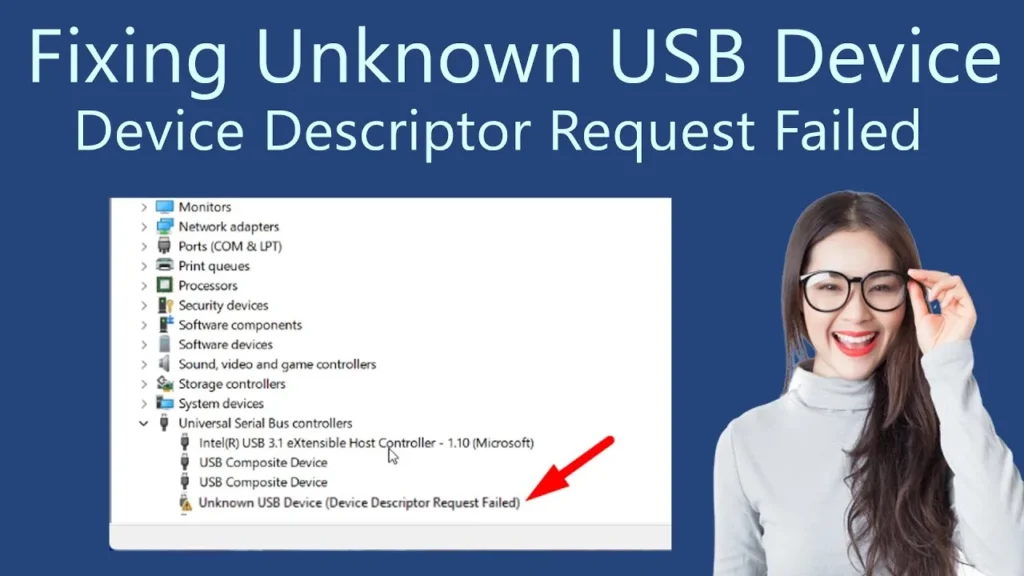
How to Fix “USB Device Descriptor Request Failed” in Windows 11
The “Unknown USB Device (Device Descriptor Request Failed)” error in Windows 11 (reporting Code 43 or Code 10 in Device Manager) occurs when the host eXtensible Host Controller Interface (xHCI) fails to retrieve the initial 18-byte USB_DEVICE_DESCRIPTOR structure over control Endpoint 0 during the USB bus enumeration handshake. When the device fails to return its basic operational parameters—such as vendor ID (VID), product ID (PID), packet size, and device class—within the default hardware timeout window, the Windows kernel aborts device configuration, cuts logical communication, and flags the port with a descriptor failure.
This failure typically stems from broken differential data lines ($D+$ and $D-$) on the physical connector, residual flea power holding the motherboard’s xHCI host controller in a fault state, aggressive power-gating via Windows 11 Fast Startup and USB Selective Suspend, or corrupted descriptor caches within the Windows DriverStore.
Quick Diagnostic Matrix
| Symptom | Root Cause | Path / Tool | Recommended Fix |
| Code 43 / Descriptor Failed after reboot | Corrupted xHCI host controller hardware registers or flea-power lock | AC Power / PC Chassis | Perform a cold flea-power capacitor drain on the motherboard. |
| Error triggers after system wakes from Sleep or Startup | Windows Fast Startup preserving stale enumeration tables or suspended bus | powercfg.cpl | Disable Fast Startup and set USB selective suspend to Disabled. |
| Device powers on (LEDs light up), but fails descriptor | Intact 5V power rail, but severed or shorted $D+$ or $D-$ differential data lines | Cable / Physical Port | Swap to a verified 4-wire data cable; connect directly to rear motherboard I/O. |
| Error persists across multiple different USB ports | Outdated or corrupted chipset INF and xHCI controller drivers | devmgmt.msc | Uninstall USB Root Hub (USB 3.0); reinstall manufacturer chipset drivers. |
| Fails only when connected to a multi-port hub | $V_{BUS}$ voltage sag below the $4.75text{V}$ threshold required for enumeration | USB Topology | Replace unpowered splitters with an externally powered USB 3.0/3.2 hub. |
1. Perform a Cold Flea-Power Drain (xHCI Host Controller Reset)
Motherboard chipset controllers maintain standby power ($+5text{VSB}$) across internal filter capacitors even when Windows is shut down normally. If an unhandled electrostatic discharge (ESD) or voltage dip freezes the xHCI host controller’s internal state machine, the controller will fail every subsequent descriptor handshake until flea power is completely discharged.
[System Shutdown]
 └── Disconnect AC Power Cable from Wall Outlet (or remove Laptop Battery)
      └── Unplug ALL Connected USB Peripherals (Keyboards, Mice, Drives, Hubs)
           └── Press and Hold PC Power Button for 30–60 Seconds (Bleeds Capacitance)
                └── Leave Unpowered for 5 Minutes ──► Reconnect & Cold Boot
Shut down Windows 11 completely.
Flip the power supply rocker switch to O (Off) and unplug the AC power cord from the wall. (For laptops, disconnect the AC charger and remove the battery if it is external).
Disconnect all USB cables, dongles, flash drives, and external hubs from the computer.
Press and hold the computer’s physical power button for 30 to 60 seconds. This forces the motherboard’s decoupling capacitors to discharge stored current through the board’s grounded power planes.
Leave the PC unplugged for 5 minutes.
Reconnect the AC power cord, boot into Windows 11, and insert the problematic USB device into a different port.
2. Reinstall xHCI Controller and Root Hub Drivers
If an improper disconnection or bus stall wrote a corrupted device handle into the active kernel memory pool, reinstalling the root hub stack forces the Windows Plug and Play (PnP) manager to re-enumerate all physical root ports.
[Device Manager (devmgmt.msc)]
 └── Universal Serial Bus controllers
      ├── Unknown USB Device (Device Descriptor Request Failed) ──► Uninstall
      ├── USB Root Hub (USB 3.0)                               ──► Uninstall
      └── Generic USB Hub                                      ──► Uninstall
Right-click the Start Menu icon and select Device Manager (or press
Win + R, typedevmgmt.msc, and press Enter).Expand the Universal Serial Bus controllers section at the bottom.
Locate the entry displaying the yellow warning triangle: Unknown USB Device (Device Descriptor Request Failed).
Right-click the failed node and select Uninstall device, then click Uninstall to confirm.
In the same category, right-click USB Root Hub (USB 3.0) (or USB Root Hub (xHCI)) and select Uninstall device. (If your mouse and keyboard disconnect, proceed to Step 6 using your PC’s physical power button to restart).
Click the Action menu at the top of Device Manager and select Scan for hardware changes, or simply Restart your PC.
Upon rebooting, Windows 11 will automatically reload the native inbox driver stack (
usbhub3.sysandusbxpress.sys).
3. Disable Fast Startup and USB Selective Suspend
Windows 11 enables Fast Startup by default. Rather than performing a clean hardware initialization on boot, Fast Startup saves a snapshot of the kernel session and driver memory state into hiberfil.sys. If a USB device enters an undefined state before shutdown, the corrupted descriptor state is reloaded on the next boot.
[Power Options (powercfg.cpl)]
 ├── Choose what the power buttons do ──► Uncheck "Turn on fast startup"
 └── Change advanced power settings  ──► USB settings > USB selective suspend > Disabled
Step A: Disable Fast Startup
Press
Windows Key + R, typepowercfg.cpl, and hit Enter.Click Choose what the power buttons do in the left sidebar.
Click the shield icon link: Change settings that are currently unavailable.
Scroll to the bottom and uncheck the box next to Turn on fast startup (recommended).
Click Save changes.
Step B: Disable USB Selective Suspend
In the main
powercfg.cplwindow, click Change plan settings next to your active power plan.Click Change advanced power settings.
Expand USB settings > USB selective suspend setting.
Set both On battery and Plugged in to Disabled.
Click Apply, then OK.
4. Turn Off Power Gating on USB Root Hubs
The Windows kernel dynamically cuts power to idle USB transceiver hubs to reduce system wattage. If a connected device responds slowly to wake interrupts, the descriptor handshake times out before the hub finishes its transition out of the low-power $D2/D3$ state.
[Device Manager]
 └── Universal Serial Bus controllers > USB Root Hub (USB 3.0) > Properties
      └── Power Management Tab
           └── [UNCHECK] "Allow the computer to turn off this device to save power"
Open Device Manager (
devmgmt.msc).Expand Universal Serial Bus controllers.
Right-click USB Root Hub (USB 3.0) and select Properties.
Switch to the Power Management tab.
Uncheck the box labeled Allow the computer to turn off this device to save power.
Repeat this process for all Generic USB Hub and USB Root Hub entries listed.
Click OK and restart Windows.
5. Purge Stale/Ghost USB Device Nodes
When a USB peripheral experiences an interrupted handshake, Windows 11 often retains a phantom (“ghost”) record of the device in its registry. Subsequent connection attempts collide with this cached entry, immediately failing the descriptor request.
[Command Prompt (Run as Administrator)]
 └── set devmgr_show_nonpresent_devices=1 ──► Launch devmgmt.msc
      └── View > Show hidden devices
           └── Delete faded/grayed-out USB device nodes
Press
Windows Key + S, typecmd, right-click Command Prompt, and select Run as administrator.Type the following command and press Enter:
DOSset devmgr_show_nonpresent_devices=1Launch Device Manager from the same prompt:
DOSstart devmgmt.mscIn Device Manager, click View on the top menu and select Show hidden devices.
Expand both Universal Serial Bus controllers and Human Interface Devices.
Locate any faded, translucent, or grayed-out entries (especially those labeled Unknown USB Device or devices that match your disconnected hardware).
Right-click each grayed-out item and select Uninstall device.
Close Device Manager and restart your computer.
6. Inspect Physical Pin Continuity and Signal Integrity
USB 2.0 and USB 3.0 connectors isolate power delivery from data transmission. If the power pins make contact while the differential data lines do not, the peripheral powers on, but the host controller cannot complete the physical enumeration phase.
[Standard USB Type-A Pinout]
 ┌────────────────────────────────────────────────────────┐
 │  [Pin 1: VBUS (+5V)]  ──► Powers LEDs and on-chip MCU  │
 │  [Pin 2: Data- (D-)]  ──► Differential Data Negative   │ <── If bent, broken, or dirty:
 │  [Pin 3: Data+ (D+)]  ──► Differential Data Positive   │ <── DESCRIPTOR REQUEST FAILS
 │  [Pin 4: Ground (GND)]──► Completes power circuit      │
 └────────────────────────────────────────────────────────┘
Verify True 4-Wire Cabling: Cheap or bundled USB cables (often shipped with rechargeable lamps, vape chargers, or basic desk fans) are often 2-wire charge-only cables lacking the central $D+$ and $D-$ copper conductors. If your peripheral uses a detachable cable, replace it with a verified USB-IF certified sync-and-data cable.
Bypass Case Headers and Unpowered Hubs: Front-panel PC ports route through unshielded internal wiring harnesses that experience voltage sag and signal crosstalk. Plug the device directly into the rear I/O panel of the motherboard.
Inspect the Physical Connector: Use a flashlight to inspect the metal tongue inside both the cable plug and the computer port. Look for:
Compacted pocket lint or dust insulating the center pins.
Bent, recessed, or oxidized copper spring contacts.
If oxidation is visible, clean the port with an ESD-safe brush lightly moistened with 99% isopropyl alcohol (IPA) while the system is powered off.
If the device still generates “Device Descriptor Request Failed” across multiple different computers (including a secondary PC or a machine running macOS or Linux), the fault is an unrecoverable hardware defect inside the USB peripheral itself. This indicates that the peripheral’s onboard microcontroller has suffered electrostatic discharge (ESD) damage across its $D+/D-$ data pins, its crystal oscillator has failed to provide clock synchronization, or an internal trace fracture has severed the controller from Endpoint 0. In this scenario, the peripheral’s internal controller or circuit board requires physical repair or replacement.