
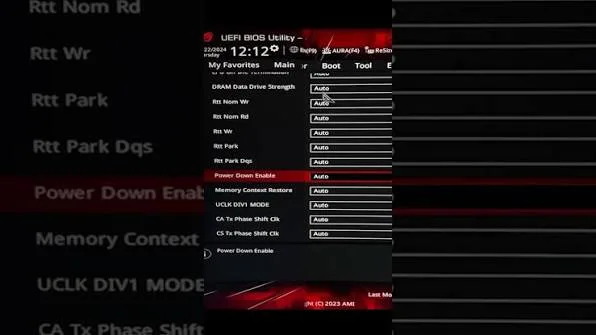
Fix: Asus Tuf B650 Memory Context Restore
On the ASUS TUF Gaming B650 series, enabling Memory Context Restore (MCR) to reduce long DDR5 boot times causes system crashes, orange DRAM LED hangs, or
MEMORY_MANAGEMENT Blue Screens of Death (BSOD) because Power Down Enable (PDE) is left disabled or on Auto.For MCR to function stably on AM5, both Memory Context Restore and Power Down Enable must be set to “Enabled” simultaneously in two separate BIOS menus (Ai Tweaker and AMD CBS). If one is enabled while the other is disabled or set to Auto, the memory controller misaligns timing parameters upon waking, corrupting system memory.
Quick Diagnostic Matrix
| Symptom | Root Cause | Target Fix |
Boot time drops, but Windows throws MEMORY_MANAGEMENT BSOD | MCR enabled while Power Down Mode is set to Auto/Disabled | Enable Power Down Enable in both Ai Tweaker and AMD CBS. |
| Orange DRAM LED stays solid on cold boot / restart | Timing mismatch between Ai Tweaker and AMD CBS menus | Manually set MCR and Power Down to Enabled in both locations. |
| System is stable in Windows, but fails to wake from Sleep (S3) | Low SoC/VDDIO voltage failing to hold trained memory state | Manually set CPU VDDCR SOC Voltage to 1.20V–1.25V. |
| Random reboots under light loads or browsing | Unstable EXPO profile timings paired with skipped training | Switch from EXPO I to EXPO II (uses memory stick’s full sub-timings). |
Step 1: Configure the Dual-Menu Settings (The Core Fix)
ASUS UEFI contains duplicate controls for Memory Context Restore. Both locations must match.
- Restart your PC and tap
DelorF2to enter the ASUS UEFI BIOS. - Press
F7to switch to Advanced Mode.
Location A: Ai Tweaker Menu
- Navigate to Ai Tweaker > DRAM Timing Control.
- Scroll down to find:
- Memory Context Restore ──► Set to Enabled
- Power Down Enable ──► Set to Enabled
[Ai Tweaker > DRAM Timing Control]
 ├── Memory Context Restore ──► [ENABLED]
 └── Power Down Enable      ──► [ENABLED]  <── CRITICAL: Do NOT leave on "Auto"
Location B: AMD CBS Menu
- Navigate to Advanced > AMD CBS > UMC Common Options > DDR Options > DDR Memory Features.
- Set:
- Memory Context Restore ──► Set to Enabled
- Power Down Enable (if listed here depending on BIOS version) ──► Set to Enabled
[Advanced > AMD CBS > UMC Common Options > DDR Options > DDR Memory Features]
 └── Memory Context Restore ──► [ENABLED]
- Press
F10to save changes and exit. - Initial Training: The first boot after saving will take 60–90 seconds while the board writes the baseline training table. Subsequent boots will drop to 12–18 seconds.
Step 2: Switch to EXPO II (If BSODs Persist)
ASUS motherboards apply custom board-optimized sub-timings under EXPO I, which can be too aggressive when combined with skipped retraining.
- In BIOS, go to Ai Tweaker.
- Locate Ai Overclock Tuner:
- Change from EXPO I to EXPO II.
- Difference: EXPO I loads ASUS-tweaked secondary timings; EXPO II loads the exact raw JEDEC/SPD tables validated by the RAM manufacturer.
- Verify your memory frequency is set to the kit’s rated speed (e.g., DDR5-6000 with FCLK at 2000 MHz).
Step 3: Stabilize SoC & VDDIO Voltages
If skipping training causes cold-boot memory drops at DDR5-6000 CL30, the memory controller (IMC) needs slightly more resting voltage.
- Go to Ai Tweaker.
- Locate CPU VDDCR SOC Voltage:
- Change from Auto to Manual.
- Set VDDCR SOC Voltage Override to 1.20V (or 1.25V for high-density 64GB/96GB kits).
- Safety Guard: Keep this value under $1.30text{V}$ to prevent long-term degradation.
- Locate DRAM VDD Voltage and DRAM VDDQ Voltage:
- Match the voltage specified on your RAM stick label (typically 1.35V or 1.40V for 6000MHz CL30/CL32 kits).
Step 4: Update BIOS to AGESA 1.0.0.7c or Newer
Early AM5 BIOS revisions had a documented AGESA bug where MCR corrupted memory tables regardless of user settings.
- Check your current BIOS version on the main UEFI screen.
- If your BIOS was released prior to late 2023 (AGESA versions below
1.0.0.7c), flash the motherboard to the latest stable version available on the official ASUS TUF B650 support page using ASUS EZ Flash 3 via a FAT32 USB drive. - Modern BIOS releases include updated AMD microcode that fixes the memory controller sleep/wake state synchronization.
Step 5: What to Do If Stability Fails
If your specific silicon cannot achieve stability with MCR enabled (common on budget 4-stick configurations or non-EXPO Intel XMP kits running on AMD):
- Return to the BIOS menus in Step 1.
- Set Memory Context Restore to Disabled in both locations.
- Set Power Down Enable to Disabled.
- The system will retrain memory on every boot (taking ~45–60 seconds), but will be 100% stable without crashes or data corruption.