
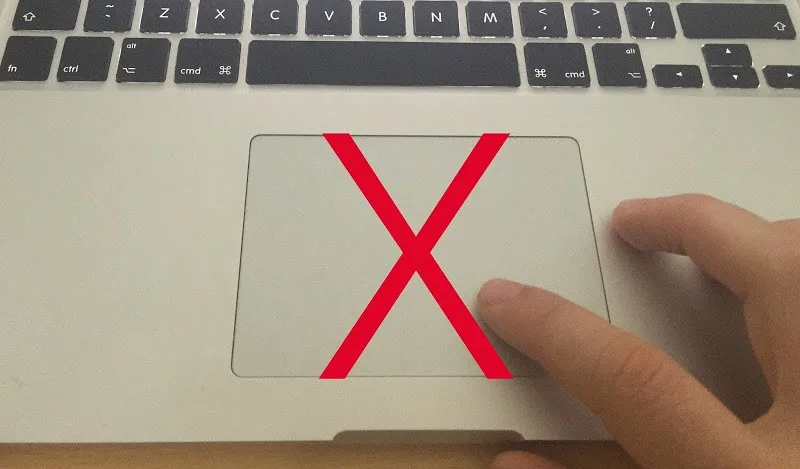
How to Fix MacBook Trackpad Not Working
A non-responsive MacBook trackpad stems from an unpowered Taptic Engine actuator, an expanding lithium-ion battery pouch exerting upward pressure on the trackpad assembly, an active accessibility override disabling internal inputs when an external pointing device is detected, or corrupted property list (.plist) preferences stalling the multitouch daemon (multitouchd). When a trackpad stops tracking, loses its mechanical haptic click, or behaves erratically, isolating software configuration locks from physical hardware stress quickly reveals the path to recovery.
Quick Diagnostic Matrix
| Symptom | Root Cause | Setting / Path / Key Combo | Recommended Fix |
| Cursor moves, but physical click does not register / feels rigid | Taptic Engine power failure or Force Touch haptic feedback toggle disabled | System Settings > Trackpad | Enable Force Click and haptic feedback; inspect logic board power rails. |
| Trackpad edges bulge upward; chassis wobbles on flat desk | Swollen lithium-ion battery pouch physically pressing against the trackpad module | Visual seam inspection / pmset -g batt | Disconnect charger immediately; replace swollen battery to prevent fire or panel fracture. |
| Trackpad completely unresponsive only when mouse or dongle is nearby | macOS Accessibility setting configured to disable internal trackpad upon mouse detection | System Settings > Accessibility > Pointer Control | Toggle off Ignore built-in trackpad when mouse or wireless trackpad is present. |
| Cursor jumps randomly, registers ghost clicks, or stutters | Corrupted multitouch preference files or static build-up on the capacitive glass | ~/Library/Preferences | Delete trackpad preference plists and restart the multitouchd background daemon. |
1. Disable the Accessibility Mouse Override
macOS includes an accessibility feature designed to prevent palm-rejection errors by disabling the internal trackpad whenever an external mouse or trackpad is detected. If an old Bluetooth mouse in a laptop bag or a dormant RF dongle remains paired, macOS cuts all input to the built-in trackpad.
- Open
System Settingsfrom the Apple menu (). - Navigate to
Accessibilityin the left sidebar. - Scroll down and click Pointer Control.
- Locate the toggle labeled:Ignore built-in trackpad when mouse or wireless trackpad is present.
- Set this toggle to Off.
- Turn off Bluetooth temporarily from the Control Center to sever any hidden wireless connections holding priority on the pointer bus.
[System Settings]
 └── Accessibility
      └── Pointer Control
           └── [Toggle OFF] "Ignore built-in trackpad when mouse or wireless trackpad is present"
2. Inspect for Battery Swelling (Physical Pressure Lock)
In all modern unibody and Retina MacBooks, the lithium-ion battery cells sit directly underneath the aluminum trackpad housing. When battery cells degrade, electrolyte gas expands the outer pouch. This swelling pushes upward against the underside of the trackpad, locking mechanical switches or triggering false-positive readings on the capacitive sensors.
- Place your MacBook on a completely flat, hard surface (such as a glass or granite table).
- Tap each of the four rubber feet on the bottom of the chassis:
- If the laptop rocks or wobbles diagonally, the bottom chassis cover is being pushed outward by expanding battery cells.
- Inspect the perimeter seams of the trackpad glass:
- The surface of the trackpad should sit completely flush with or slightly below the aluminum palm rest. If the trackpad is raised, bulging at the center, or visibly protruding, stop charging the laptop immediately.
- Check battery condition:
- Hold the
Optionkey and click the Apple menu () > System Information. - Under the Hardware tree, click Power.
- Check Condition under Health Information. If it reads Service Recommended, internal expansion is likely.
- Safety Note: Swollen batteries cannot be repaired by calibration; the battery pack must be replaced to prevent chassis damage or thermal runaway.
3. Verify Force Touch and Taptic Engine Operation
MacBooks manufactured from 2015 onward do not contain a physical mechanical button under the trackpad. The “click” is an artificial tactile vibration generated by an electromagnetic coil called the Taptic Engine. If the MacBook loses power, enters a sleep state, or suffers a driver hang, the glass remains completely rigid.
- Go to
System Settings> Trackpad. - Under the Point & Click tab, verify that the Click slider is set to Medium or Firm (if set to light, feedback may feel imperceptible).
- Ensure Force Click and haptic feedback is toggled On.
- If the trackpad still moves the cursor across the screen but produces zero tactile click when pressed down, the capacitive sensor is working, but the Taptic Engine driver or power circuit has stalled. Proceed to reset system controllers in Step 5.
4. Purge Corrupted Multitouch Preferences & Daemons
Corrupted
.plist configuration files can lock the background daemon managing gesture processing and click registration. Rebuilding these files restores factory gesture baselines.- Open Finder.
- In the top menu bar, click Go > Go to Folder… (or press
Command + Shift + G). - Paste the following path and press Enter:
~/Library/Preferences - Locate and move the following files to the Trash (some may not be present depending on macOS version):
com.apple.AppleMultitouchTrackpad.plistcom.apple.driver.AppleBluetoothMultitouch.trackpad.plistcom.apple.preference.trackpad.plist
- Open Terminal (via Spotlight or
Applications > Utilities) and force-restart the multitouch daemon to reload clean defaults:Bashkillall -HUP multitouchd - Restart your MacBook.
5. Reset SMC and NVRAM (Intel) or Flush via Safe Mode (Apple Silicon)
On Intel machines, the System Management Controller (SMC) governs the Serial Peripheral Interface (SPI) bus connecting the trackpad to the logic board. On Apple Silicon, safe boots purge stale hardware abstraction layers.
On Apple Silicon (M1, M2, M3, M4):
- Shut down your Mac completely.
- Press and hold the Power / Touch ID button until you see “Loading startup options”.
- Highlight your startup disk (usually Macintosh HD).
- Press and hold the
Shiftkey, then click Continue in Safe Mode. - Once logged in, test the trackpad. If it responds normally, restart the Mac from
> Restartto finalize the system cache clear.
On Intel MacBooks (T2 Security Chip):
- Shut down the machine.
- On the built-in keyboard, press and hold:
Control(left side) +Option(left side) +Shift(right side). - Keep holding all three keys for 7 seconds, then press and hold the Power button as well.
- Keep holding all four keys together for another 7 seconds, then release them simultaneously.
- Wait 5 seconds, then turn on the laptop.
- Immediately reset the NVRAM: press and hold
Option + Command + P + Rfor 20 seconds upon boot until you hear the second startup chime.
6. Inspect the Trackpad IPD Flex Cable for Liquid Corrosion
If the trackpad is completely dead and the keyboard also fails to respond, the issue points directly to the Trackpad Interconnect (IPD) Cable. On modern MacBooks, keyboard data signals are routed through the trackpad controller board before reaching the main logic board.
- Liquid Ingress via Palm Rests: Moisture from sweaty palms, cleaning sprays, or minor spills around the bottom perimeter of the trackpad seeps directly onto the Zero Insertion Force (ZIF) connector housing the trackpad ribbon cable.
- Corrosion on Pins: Pin 1 on this connector carries the primary low-voltage logic rail. When moisture meets voltage, electrolysis quickly corrodes the copper traces on the ribbon cable, causing the entire bus to drop offline.
If an external USB mouse functions properly while the built-in trackpad remains completely unresponsive across both standard macOS and Recovery Mode, the fault is hardware-isolated. The modular trackpad IPD ribbon cable or the trackpad sensor board itself has suffered corrosion or physical circuit damage, requiring a component swap.