
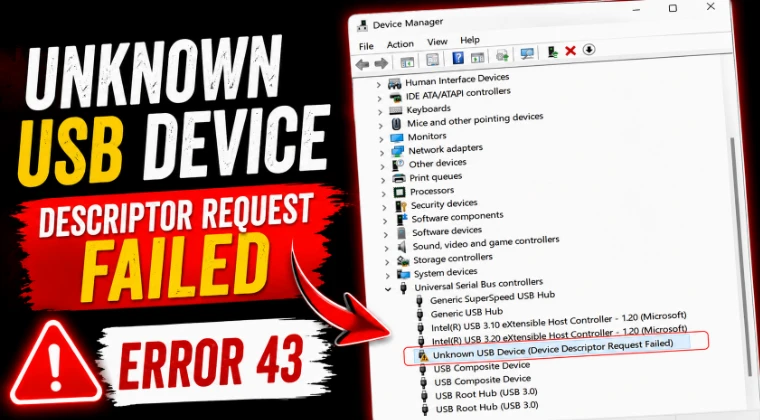
How to Fix Unknown USB Device (Device Descriptor Request Failed) Code 43
The Unknown USB Device (Device Descriptor Request Failed) error accompanied by Code 43 occurs when the Windows USB driver stack (usbport.sys or usbhub3.sys) fails to complete the standard USB enumeration handshake over Endpoint 0. During connection, the host controller issues a GET_DESCRIPTOR control transfer to read the connected device’s configuration parameters, Vendor ID (VID), and Product ID (PID). If electrical signal attenuation on the D+ or D- differential lines, volatile register corruption in the USB Root Hub, or a low-voltage drop across the VBUS power rail prevents the peripheral from returning valid descriptor packets within the hardware timeout window, Windows terminates enumeration and stops the port.
Quick Diagnostic Matrix
| Symptom | Root Cause | Setting / Path | Recommended Fix |
| Error triggers instantly across all USB ports on the PC | Saturated decoupling capacitors holding locked register states in the host controller | Hardware / Power Circuit | Discharge motherboard flea power via a cold 60-second power cycle. |
| Device fails only after PC wakes from sleep or boots up | USB Selective Suspend or Fast Startup dropping bus power below enumeration thresholds | powercfg.cpl | Disable USB selective suspend and turn off Windows Fast Startup. |
| Error follows a specific physical device on multiple PCs | Severed D+/D- data pin, fractured solder joint, or dead microcontroller on the peripheral | Hardware / Cable Assembly | Inspect connector pins; replace USB cable or repair peripheral daughterboard. |
| Device works on rear I/O, fails on front chassis ports | Voltage sag across internal chassis header cables or unpowered hub overdraw | Motherboard Internal Headers | Connect device directly to rear motherboard I/O; bypass passive splitters. |
| Persistent failure despite working hardware | Corrupted filter drivers intercepting control transfers in the USB class stack | regedit (Class GUID) | Remove third-party UpperFilters and LowerFilters from registry. |
1. Discharge Flea Power from the Motherboard
Modern USB eXtensible Host Controllers (xHCI) remain energized by 5V standby power rails even when the computer is shut down. If a transient voltage spike or bad disconnect locks the controller’s port status registers, the hardware remains stuck in a fault loop until all power is bled from the motherboard’s filter capacitors.
For Desktop PCs:
Shut down Windows completely.
Turn the physical switch on the rear of the power supply to O (Off) and disconnect the AC power cord from the wall.
Disconnect all external USB peripherals, hubs, and flash drives.
Press and hold the computer’s front Chassis Power Button for 30 seconds.
Why this works: Holding the button discharges residual electrical energy (“flea power”) stored inside the motherboard’s capacitors, forcing the xHCI controller registers to execute a cold hardware reset.
Reconnect the AC power cord, switch the power supply on, and boot into Windows.
Plug the USB device directly into a rear motherboard port.
For Laptops:
Disconnect the charger and remove the battery (if externally removable).
Unplug all USB peripherals.
Press and hold the physical Power button for 60 seconds.
Reconnect the charger and power on the laptop.
2. Disable USB Selective Suspend and Fast Startup
Windows Fast Startup restores cached kernel sessions from hiberfil.sys, which can cause low-level driver desynchronization with the USB controller. Similarly, USB Selective Suspend cuts bus power to idling ports, often preventing devices from waking up to acknowledge descriptor requests.
Step A: Disable USB Selective Suspend
Press
Windows Key + R, typepowercfg.cpl, and press Enter.Click Change plan settings next to your active power plan.
Click Change advanced power settings.
In the pop-up window, expand USB settings > USB selective suspend setting.
Set both On battery and Plugged in to Disabled.
Click Apply, then click OK.
[Power Options (powercfg.cpl)]
 └── Change plan settings
      └── Change advanced power settings
           └── USB settings
                └── USB selective suspend setting > [Set to DISABLED]
Step B: Turn Off Windows Fast Startup
In the left-hand column of the main
powercfg.cplwindow, click Choose what the power buttons do.Click the administrative shield labeled Change settings that are currently unavailable.
Under Shutdown settings, uncheck the box next to Turn on fast startup (recommended).
Click Save changes and restart your computer.
3. Reinstall USB Host Controllers and Root Hubs
If the low-level USB driver stack contains corrupted pointers, uninstalling the root hub tree forces Windows to re-enumerate the physical PCIe controller and rebuild fresh device stacks.
Press
Windows Key + Xand select Device Manager (or rundevmgmt.msc).Scroll down and expand Universal Serial Bus controllers.
Locate the error entry: right-click Unknown USB Device (Device Descriptor Request Failed) and select Uninstall device. Click Uninstall to confirm.
Next, uninstall the physical root hubs:
Right-click USB Root Hub (USB 3.0) (or similar root hub entries) and select Uninstall device.
If your mouse/keyboard disconnects, proceed to power-cycle the machine using the physical chassis button.
Right-click the top-level machine name in Device Manager and select Scan for hardware changes, or simply Restart your PC.
Upon reboot, Windows will re-read the ACPI tables and reload clean copies of
usbhub3.infandusbxchi.inf.
[Device Manager]
 └── Universal Serial Bus controllers
      ├── Unknown USB Device (Descriptor Failed) > Uninstall
      └── USB Root Hub (USB 3.0) > Uninstall
           └── Action Menu > Scan for hardware changes
4. Purge Corrupted Class Upper and Lower Filters
Third-party virtualization software (VMware, VirtualBox), smartphone synchronization tools, or custom USB sniffers frequently install filter drivers into the USB device class registry key. If a filter driver fails to pass the GET_DESCRIPTOR I/O Request Packet (IRP) down the driver chain, the system drops the device with Code 43.
Press
Windows Key + R, typeregedit, and press Enter to open the Registry Editor.Navigate to the following class key:
PlaintextHKEY_LOCAL_MACHINE\SYSTEM\CurrentControlSet\Control\Class\{36fc9e60-c465-11cf-8056-444553540000}With the
{36fc9e60...}key highlighted in the left pane, inspect the values in the right pane:Look for entries named UpperFilters and LowerFilters.
If either entry exists, right-click it and select Delete.
(Note: Do not delete other keys or values in this directory).
Close the Registry Editor and restart your computer to apply the stack modifications.
5. Isolate VBUS Voltage Drops and Signal Integrity
USB 2.0 and 3.0 rely on strict electrical tolerances: VBUS must provide $5\text{V} \pm 5\%$ ($4.75\text{V}$ to $5.25\text{V}$), while descriptor data transfers require clean differential voltage swings between the D+ (green) and D- (white) wires.
[Standard USB Type-A Pinout]
 ┌───────────────────────┐
 │ [Pin 1: VBUS (5V)]    │ <─── Voltage Drop (< 4.75V) causes brownout
 │ [Pin 2: Data- (D-)]   │ <─── Fractured pin/wire halts GET_DESCRIPTOR
 │ [Pin 3: Data+ (D+)]   │ <─── Micro-corrosion breaks differential link
 │ [Pin 4: Ground (GND)] │
 └───────────────────────┘
Bypass Front-Panel Chassis Ports: Front-panel USB ports use long, unshielded internal ribbon cables that route through the PC chassis to motherboard headers. These cables introduce signal attenuation and ground loops. Plug the device directly into the integrated motherboard rear I/O panel.
Eliminate Passive Hubs: If the device is connected to an unpowered (bus-powered) USB hub or keyboard passthrough port, the shared 500mA budget can drop the voltage below the device controller’s minimum operating threshold during initialization. Move to a dedicated port or use an externally powered USB hub.
Inspect the Physical Connector: Use a bright light to check the USB plug and socket:
Check for bent, recessed, or oxidized copper pins.
If Pin 2 (D-) or Pin 3 (D+) is pushed back or coated with dirt, the device will draw power (LEDs may illuminate) but will fail the descriptor request instantly because no bidirectional data transmission can take place. Clean contacts with a swab dipped in 99% isopropyl alcohol.
6. Flush Stale USB Device Cache via USBDeview
Windows caches historical USB device metadata in non-volatile registry keys (SYSTEM\CurrentControlSet\Enum\USB). If a device is repeatedly unplugged during an active write cycle, a corrupted registry record can cause Windows to reject future descriptor negotiations.
Download the portable, administrative utility USBDeview (by NirSoft).
Right-click
USBDeview.exeand select Run as administrator.In the menu, go to Options and ensure Show Disconnected Devices is checked.
Locate entries highlighted in pink or marked as Unknown USB Device, Failed, or corresponding to the Vendor/Product ID of your problem device.
Select the problematic entries, right-click, and select Uninstall Selected Devices.
Disconnect the peripheral, restart Windows, and plug the device back in to force a fresh bus enumeration cycle from scratch.
If the device still generates Unknown USB Device (Device Descriptor Request Failed) Code 43 across multiple completely different host computers (including a secondary PC or a Linux live environment), the failure is hardware-isolated to the peripheral itself. This indicates an open circuit on the device’s internal D+/D- data lines, a cracked crystal oscillator preventing the microcontroller from locking onto the USB clock frequency, or an internal short in the peripheral’s USB controller chip requiring physical hardware repair or board replacement.