
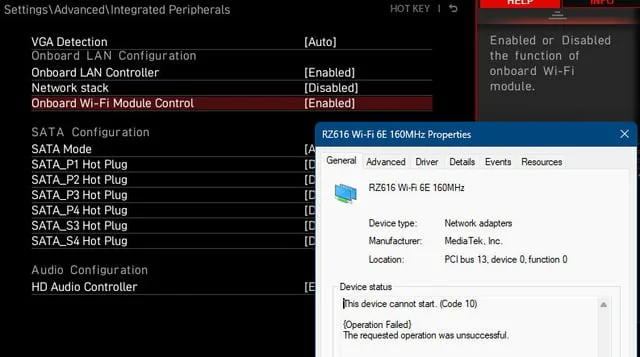
How to Fix MediaTek Wi-Fi 6E MT7922 “This Device Cannot Start. (Code 10)”
The “This device cannot start. (Code 10)” or Code 43 error on the MediaTek Wi-Fi 6E MT7922 (RZ616) wireless card occurs when the operating system’s kernel driver (mtkwl6ex.sys) fails to initialize the hardware interface over the PCIe/CNVi bus. The card becomes unresponsive, causing the Wi-Fi icon to disappear entirely from the Windows taskbar and Device Manager to flag the adapter with a yellow exclamation mark.
On modern laptops and motherboards (frequently ASUS ROG/TUF, Lenovo Legion, and AMD AM5 platforms), this specific adapter is prone to entering a frozen low-power link state ($D3text{hot}$ or $D3text{cold}$). Residual motherboard flea power, PCIe Active State Power Management (ASPM) conflicts, Windows Fast Startup caching a suspended bus state, or an unseated M.2 card are the primary causes.
Quick Diagnostic Matrix
| Symptom / Trigger | Root Cause | Diagnostic Check | Recommended Fix |
| Wi-Fi disappears after Sleep, Hibernate, or Cold Boot | Card stuck in a low-power PCIe sleep state; stale hardware registers | Device Manager > Network adapters | Perform a 60-second EC/Flea-Power Drain; disable Fast Startup. |
| Code 10 appears after Windows Update or driver auto-update | Corrupted or unstable OEM driver release (e.g., bugged 3.3.x builds) | Driver Tab in Device Manager | Roll back to or clean-install MediaTek driver v3.3.0.708 or v3.4.0.x. |
| Bluetooth works, but Wi-Fi shows Code 10 / Yellow Exclamation | PCIe interface disconnected or frozen, while USB interface (Bluetooth) is active | Device Manager View by Connection | Turn off PCIe ASPM / Link State Power Management in Windows Power Options. |
| Wi-Fi drops under heavy gaming or CPU/GPU thermal load | Thermal expansion causing micro-disconnection in M.2 2230 key E slot | Physical Inspection under SSD/GPU | Reseat the M.2 Wi-Fi card; clean contacts with 99% IPA; check thermal pads. |
| Card repeatedly drops and only works after a full PC restart | Windows aggressive power gating cutting $V_{CC}$ to the transceiver | Device Manager Adapter Properties | Uncheck “Allow the computer to turn off this device to save power”. |
1. Execute an Embedded Controller (EC) & Flea-Power Reset
Because the MT7922 card maintains standby power via motherboard trace capacitors even during standard shutdowns, an unhandled register lockup will persist through ordinary reboots. A hard hardware reset forces the Embedded Controller (EC) to clear volatile PCIe registers and re-enumerate the card.
[Laptop Hard Power Drain Flow]
 Unplug Charger ──► Disconnect All USB Peripherals ──► Shut Down Completely
       │
       ▼
 Press and HOLD the Laptop Power Button for 60 SECONDS (Keep holding past initial blinks)
       │
       ▼
 Release Button ──► Wait 2 Minutes ──► Plug Charger Back In ──► Cold Boot
For Laptops (ASUS, Lenovo, Acer, HP):
Disconnect the AC power adapter, mouse dongles, and external USB drives.
Shut down the laptop completely (ensure power indicator LEDs are fully off).
Press and hold down the physical Power button for a full 60 seconds without letting go.
What happens: The laptop may briefly power on, flash its keyboard backlights, and immediately power off again. Continue holding the button for the entire 60 seconds to bleed the motherboard filter capacitors and reset the EC chip.
Release the button, wait 60 seconds, reconnect the original charger, and turn the laptop back on.
Verification: Open Device Manager (
devmgmt.msc). The yellow exclamation mark next to MediaTek Wi-Fi 6E MT7922 should be gone, and Wi-Fi networks will appear in your system tray.
For Desktop PCs:
Shut down Windows, flip the power supply rocker switch to O (Off), and unplug the AC power cord.
Press and hold the chassis power button for 30 seconds.
Leave the PC unpowered for 5 minutes, then plug it back in and power it on.
2. Disable Windows Fast Startup & PCIe Link Power Management
Windows Fast Startup uses hybrid hibernation (hiberfil.sys) to save the kernel and driver session to disk rather than performing a fresh hardware initialization. When the laptop wakes, stale or uninitialized driver states cause the MT7922 to fail the PCIe handshake.
[Windows Power Configuration]
 ├── Control Panel (powercfg.cpl) > Choose what power buttons do
 │    └── [UNCHECK] "Turn on fast startup (recommended)"
 └── Edit Power Plan > Advanced Settings > PCI Express
      └── Link State Power Management ──► [Set to OFF] (Both Battery & Plugged in)
Step A: Turn Off Fast Startup
Press
Windows Key + R, typepowercfg.cpl, and hit Enter.In the left sidebar, click Choose what the power buttons do.
Click the shield icon link: Change settings that are currently unavailable.
Scroll to the bottom under Shutdown settings and uncheck the box next to Turn on fast startup (recommended).
Click Save changes.
Step B: Disable PCIe Link State Power Management
In
powercfg.cpl, click Change plan settings next to your active power plan, then select Change advanced power settings.Expand PCI Express > Link State Power Management.
Change both On battery and Plugged in to Off.
Expand Wireless Adapter Settings > Power Saving Mode, and set both to Maximum Performance.
Click Apply, then OK.
3. Clean-Install Known Stable Drivers
Windows Update frequently pushes generic or unstable MediaTek driver builds that trigger timing timeouts on specific motherboard chipsets. Installing a verified OEM driver directly resolves driver-level Code 10 panics.
[Driver Rollback / Reinstallation Flow]
 1. Download stable MediaTek MT7922 driver package from laptop/motherboard support page.
 2. Device Manager > Network adapters > MediaTek Wi-Fi 6E MT7922
      └── Right-click > "Uninstall device" ──► [CHECK] "Attempt to remove driver software"
 3. Disconnect internet (Airplane Mode) to block Windows Update auto-reinstall.
 4. Restart PC ──► Run manual driver installer (.exe or INF update).
Obtain the Installer:
Download the latest official wireless driver for your specific machine from your OEM’s support portal (e.g., ASUS, Lenovo, or AMD chipset support).
Stable benchmark builds for the MT7922 include versions 3.3.0.708, 3.3.0.825, or the 3.4.x series (or Lenovo-certified packages for your model).
Uninstall the Broken Driver:
Press
Win + Xand select Device Manager.Expand Network adapters.
Right-click MediaTek Wi-Fi 6E MT7922 (RZ616) and select Uninstall device.
Crucial: Check the box labeled Attempt to remove the driver for this device (or Delete the driver software for this device), then click Uninstall.
Prevent Automatic Overwrite:
Turn on Airplane Mode or unplug any Ethernet cable to keep Windows Update from immediately pulling down the same broken generic driver.
Reboot and Install:
Restart your PC.
Run the downloaded driver installer or manually install via
devmgmt.msc(Update driver > Browse my computer for drivers > Let me pick).
Verification: Under Device Manager, right-click the card, select Properties, go to the General tab, and verify Device status reads: “This device is working properly.”
4. Adjust Adapter Advanced Properties & Disable Power Gating
Adjusting how the Windows kernel manages the transceiver prevents the card from turning off its radio during idle states.
[Device Manager (devmgmt.msc)]
 └── Network adapters > MediaTek Wi-Fi 6E MT7922 > Properties
      ├── Power Management Tab:
      │    └── [UNCHECK] "Allow the computer to turn off this device to save power"
      └── Advanced Tab:
           └── Roaming Aggressiveness ──► Change from 3 (Medium) to 1 (Lowest)
In Device Manager, expand Network adapters.
Double-click MediaTek Wi-Fi 6E MT7922 to open its Properties window.
Switch to the Power Management tab:
Uncheck Allow the computer to turn off this device to save power.
(Note: If this tab is missing, modern Connected Standby / Modern Standby is active on your device, which is handled via Section 2).
Switch to the Advanced tab:
Select Roaming Aggressiveness and change the value to 1. Lowest (prevents the card from dropping connection while searching for alternate access points).
If your router only uses 2.4 GHz and 5 GHz, locate Preferred Band and set it to Prefer 5GHz Band to avoid 6 GHz scanning loops on older firmware.
Click OK to save the changes.
5. Physical Reseating and Hardware Inspection
The MediaTek MT7922 is an M.2 2230 key E card. Because it shares space near the CPU, GPU, or primary PCIe NVMe SSD on most laptop motherboards, sustained thermal cycles can cause the card to shift slightly in its slot or produce oxidized contacts, leading to intermittent PCIe data bus drops.
[M.2 Wi-Fi Card Layout]
 ┌────────────────────────────────────────────────────────┐
 │ Motherboard M.2 Key E Slot                             │
 │   ┌──────────────────────────┐                         │
 │   │ MediaTek MT7922 Card     │ <── Retaining Screw     │
 │   │ ┌──────┐     ┌────────┐  │     (Do not over-torque)│
 │   │ │Main  │     │Aux     │  │                         │
 │   │ │[Ant1]│     │[Ant2]  │  │ <── Ensure U.FL antenna │
 │   │ └──────┘     └────────┘  │     snaps are tight     │
 │   └─────────────┬────────────┘                         │
 │                 ▼                                      │
 │   [Clean Gold Contact Fingers with 99% IPA]            │
 └────────────────────────────────────────────────────────┘
Power off the machine, disconnect the battery connector inside the chassis, and ground yourself.
Locate the M.2 Wi-Fi card (often underneath a secondary SSD, heat shield, or near the fan assembly).
Carefully unsnap the tiny black and white U.FL antenna connectors by lifting straight up.
Remove the single Phillips mounting screw and gently pull the card out at a 30-degree angle.
Clean the card’s gold contact fingers using a lint-free swab lightly moistened with 99% isopropyl alcohol (IPA), or gently use a clean pencil eraser across the contacts to remove surface oxidation.
Check that the thermal pad (if installed by OEM) is not dried out or bridging pins.
Reinsert the card firmly into the slot, secure the screw, reattach the antenna cables (snapping them firmly until they click), reattach the battery, and close the chassis.
6. The Permanent Solution: Intel AX210 Swap
The MediaTek MT7922 (and its cousin MT7921 / AMD RZ616) relies on firmware-level power gating that remains historically finicky under Windows Modern Standby ($S0text{ix}$). If the card continues to throw Code 10 errors despite driver sweeps, power drain cycles, and reseating, the card has experienced hardware silicon degradation or unresolvable PCIe timing drift with your motherboard’s chipset.
Recommended Hardware Upgrade: Replace the card with an Intel Wi-Fi 6E AX210 (Non-vPro, M.2 2230) card.
Compatibility: The Intel AX210 uses standard PCIe for Wi-Fi and USB for Bluetooth, making it a 100% plug-and-play drop-in replacement for both AMD and Intel motherboards (avoid the Intel AX211 or AX411, as those use proprietary Intel CNVi interface pins that will not work on AMD platforms).
Cost & Outcome: An AX210 card typically costs around $20 and permanently eliminates driver-level Code 10 drops.