
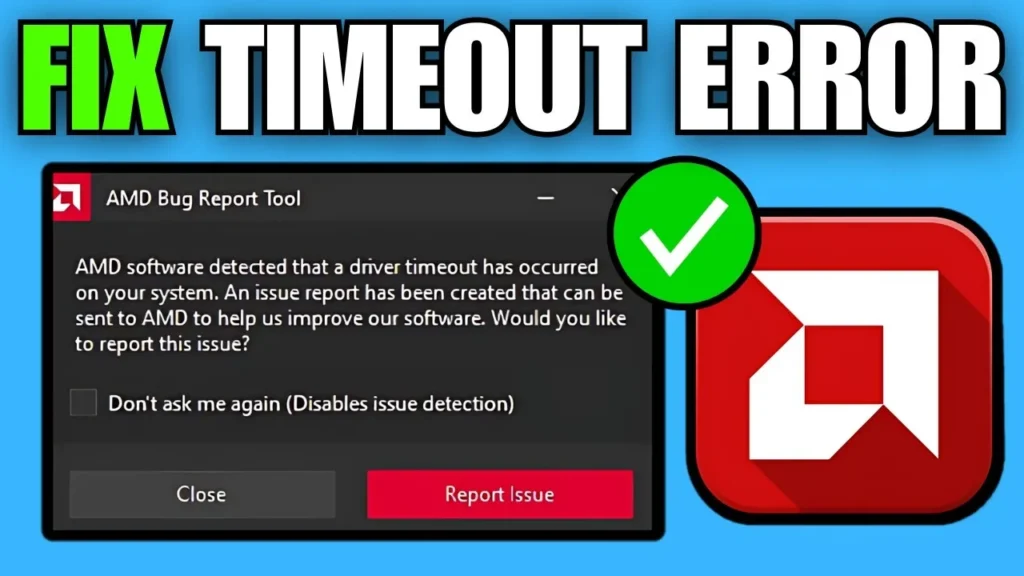
How to Fix AMD Driver Timeout Error on Windows 10
The AMD Driver Timeout error occurs when the Windows Timeout Detection and Recovery (TDR) subsystem determines that the GPU has stopped responding to kernel scheduling requests within its default 2-second timeout window. When the hardware stalls during complex shader compilation, state transitions, or memory access, the operating system attempts to reset the graphics pipeline by reloading the driver stack (amdkmdag.sys).
While AMD Adrenalin displays this as a software timeout warning, the root trigger is typically Windows Update silently overwriting WHQL drivers with generic packages, Multi-Plane Overlay (MPO) composite stalls in the Desktop Window Manager (DWM), corrupted shader caches, or PCIe Link State Power Management (ASPM) desynchronizing the bus clock.
Quick Diagnostic Matrix
| Symptom | Root Cause | Path / Tool | Recommended Fix |
| Timeout occurs during web browsing, Discord, or YouTube | Multi-Plane Overlay (MPO) desynchronization or browser hardware acceleration conflict | regedit / App Settings | Apply the MPO disable registry patch; toggle off browser hardware acceleration. |
| Error started after a routine Windows Update | Windows Update pushed a generic or mismatched UWP display driver | gpedit.msc & DDU | Block automatic Windows driver updates; run DDU in Safe Mode and reinstall WHQL drivers. |
| Timeout occurs during game loading screens or transitions | Stale or corrupt shader cache failing shader pipeline compilation | AMD Software: Adrenalin | Clear and reset the AMD Shader Cache in Adrenalin Advanced Graphics settings. |
| Driver crashes under 3D load or alt-tabbing | Aggressive factory VBIOS boost clocks, undervolts, or unstable memory tuning | AMD Software > Tuning | Lower Max Frequency by 100 MHz; disable Enhanced Sync and Anti-Lag. |
| Crash occurs when waking from sleep or idling | PCIe Link State Power Management cutting bus voltage prematurely | powercfg.cpl | Set PCI Express Link State Power Management to Off. |
1. Clean Driver Wipe via DDU and Block Windows Update Overwrites
Windows Update frequently downloads older, generic AMD drivers in the background, creating version discrepancies between the active display driver and the installed AMD Software: Adrenalin suite. A clean driver purge prevents this collision.
[System Settings / gpedit.msc]
 └── Prevent Windows Update from replacing display drivers
      └── Boot into Safe Mode
           └── Run Display Driver Uninstaller (DDU) > Clean and restart
                └── Install official AMD Adrenalin WHQL package
Step A: Block Windows Automatic Driver Updates
Press
Windows Key + R, typesysdm.cpl, and press Enter.Go to the Hardware tab and click Device Installation Settings.
Select No (your device might not work as expected) and click Save Changes.
(Windows 10 Pro/Enterprise): Press
Windows Key + R, typegpedit.msc, navigate to:Computer Configuration > Administrative Templates > Windows Components > Windows UpdateDouble-click Do not include drivers with Windows Updates, set it to Enabled, and click Apply.
Step B: Clean Sweep with DDU
Download the latest recommended WHQL AMD Software: Adrenalin Edition installer from AMD’s official driver support page.
Download Display Driver Uninstaller (DDU) and extract the archive.
Disconnect your internet connection (unplug Ethernet or disconnect Wi-Fi).
Hold
Shiftwhile clicking Restart in the Start Menu, then navigate to:Troubleshoot > Advanced options > Startup Settings > Restart> Press4to enter Safe Mode.Launch DDU, set the device type to GPU, select AMD, and click Clean and restart.
Once rebooted into normal Windows, run the AMD installer, select Additional Options, ensure Factory Reset is checked, and complete the installation.
Reconnect the internet.
2. Disable Multi-Plane Overlay (MPO) via Registry
Multi-Plane Overlay (MPO) allows Windows Desktop Window Manager (DWM) to render hardware-accelerated video streams independently of 3D applications. Architectural bugs in display compositing can freeze the AMD scheduler when navigating browsers, Discord, or hardware-accelerated media players.
[Registry Editor (regedit)]
 └── HKEY_LOCAL_MACHINESOFTWAREMicrosoftWindowsDwm
      └── New > DWORD (32-bit) Value: "OverlayTestMode" = 5 (Hexadecimal)
Press
Windows Key + R, typeregedit, and press Enter to open the Registry Editor.Navigate to the following path:
PlaintextHKEY_LOCAL_MACHINESOFTWAREMicrosoftWindowsDwmRight-click the
Dwmkey in the left tree, select New > DWORD (32-bit) Value, and name it:PlaintextOverlayTestModeDouble-click
OverlayTestMode, set the value to5, and click OK.Close the Registry Editor and restart your computer to disable MPO plane composition.
3. Extend Windows TDR Delay (TdrDelay)
If demanding rendering workloads, Ray Tracing compilation, or complex open-world asset streaming take slightly longer than 2 seconds to process, Windows triggers a TDR reset prematurely.
[Registry Editor (regedit)]
 └── HKEY_LOCAL_MACHINESYSTEMCurrentControlSetControlGraphicsDrivers
      ├── New > DWORD (32-bit) Value: "TdrDelay" = 8 (Decimal)
      └── New > DWORD (32-bit) Value: "TdrDdiDelay" = 8 (Decimal)
Open
regeditas Administrator.Navigate to:
PlaintextHKEY_LOCAL_MACHINESYSTEMCurrentControlSetControlGraphicsDriversRight-click the right-hand pane, select New > DWORD (32-bit) Value, and name it
TdrDelay.Double-click
TdrDelay, select Decimal, set the value to8(extending the watchdog threshold from 2 to 8 seconds), and click OK.Right-click the right pane again, create another DWORD (32-bit) Value, and name it
TdrDdiDelay.Double-click
TdrDdiDelay, select Decimal, set the value to8, and click OK.Restart your system to register the updated timeout threshold.
4. Reset AMD Shader Cache and Disable Problematic Features
Corrupted compiled binary shaders will hang the graphics pipeline during level loading and asset streaming. Clearing the cache forces a clean compilation pass.
[AMD Software: Adrenalin Edition]
 └── Gaming > Graphics > Advanced
      ├── [Click] "Reset Shader Cache" > Perform Reset
      └── Toggle OFF: Radeon Enhanced Sync, Radeon Anti-Lag, Radeon Boost
Open AMD Software: Adrenalin Edition.
Navigate to Gaming > Graphics.
Scroll down, expand Advanced, find Reset Shader Cache, and click Perform Reset.
In the primary Graphics settings tab, turn off the following features known to cause scheduling conflicts with specific game engines:
Radeon Enhanced Sync: Set to Disabled (known to cause display pipeline hangs during frame-rate fluctuations).
Radeon Anti-Lag: Set to Disabled.
Radeon Boost: Set to Disabled.
In your web browser (Chrome, Edge, Firefox), open Settings, search for Hardware Acceleration, and toggle it Off to test browser-specific stability.
5. Adjust PCIe Power Management and Fast Startup
When PCIe Link State Power Management enters Active State Power Management (ASPM) L0s or L1 low-power modes, latency during wake handshakes can exceed TDR limits and drop the driver.
Press
Windows Key + R, typepowercfg.cpl, and hit Enter.Click Change plan settings next to your active power profile, then click Change advanced power settings.
Expand PCI Express > Link State Power Management.
Set both On battery and Plugged in to Off.
Click Apply, then OK.
In the left sidebar of the main
powercfg.cplwindow, click Choose what the power buttons do.Click Change settings that are currently unavailable, uncheck Turn on fast startup (recommended), and save changes.
6. Stabilize GPU Clocks and Inspect Power Delivery
Many aftermarket AMD graphics cards feature aggressive factory overclocks that push peak boost frequencies beyond the silicon’s stable voltage envelope, causing transient dropouts under burst loads.
[AMD Software: Adrenalin Edition]
 └── Performance > Tuning > Manual Tuning
      └── GPU Tuning: Enabled > Advanced Control: Enabled
           └── Reduce "Max Frequency (MHz)" by 50 to 100 MHz
In AMD Adrenalin, go to Performance > Tuning.
Under Tuning Control, select Custom (or Manual).
Enable GPU Tuning, then enable Advanced Control.
Note your GPU’s rated base boost clock from the manufacturer spec sheet. If the Max Frequency (MHz) slider is set above manufacturer specifications, reduce it by 100 MHz.
Click Apply Changes in the top right.
Physical Power Cabling Check: Modern AMD GPUs (such as RX 6000, 7000, and newer series) draw high transient power spikes. Ensure your graphics card is powered by separate, dedicated 8-pin PCIe power cables originating directly from the power supply unit. Avoid single “daisy-chain” or “pigtail” splitter cables, as voltage drop across shared 18 AWG wires under load will trigger driver timeouts.
If the driver timeout persists despite completing a clean DDU sweep, disabling MPO, extending TDR delay, and capping clock frequencies, the root issue is hardware-isolated. This points to degrading GDDR6 memory chips, thermal pad breakdown causing localized VRAM hot spots, or insufficient 12V rail stability from an aging power supply unit unable to regulate transient current spikes.