
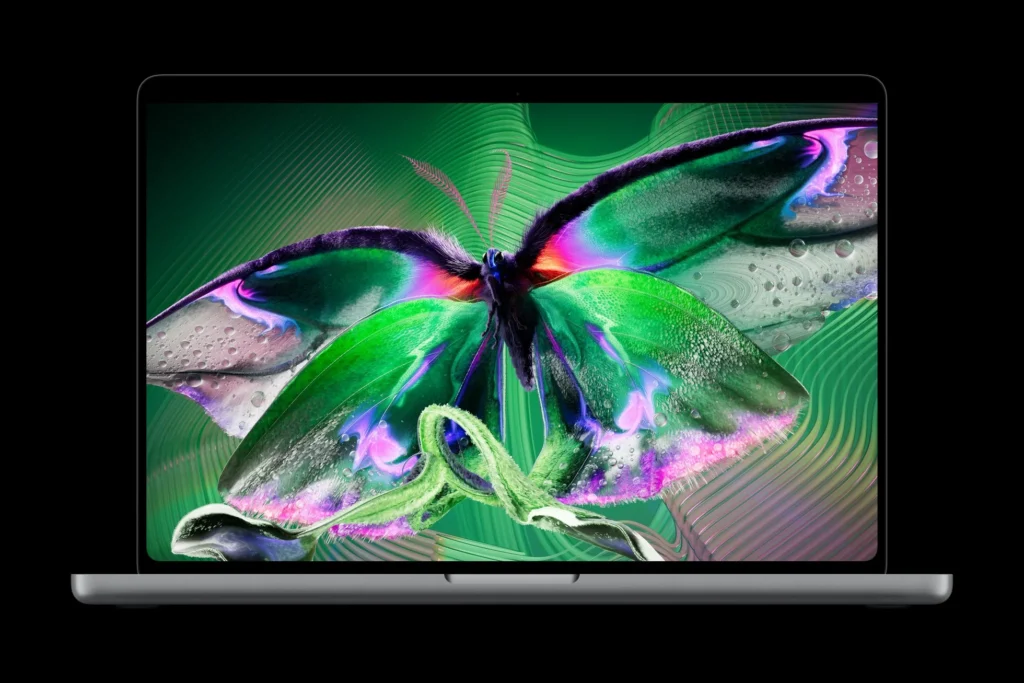
How to Troubleshoot Touch and Display Issues on New MacBook Pro
MacBook Pro displays are not touchscreens, so touch troubleshooting primarily applies to the Force Touch trackpad, Touch ID, or the Touch Bar (on older or 13-inch models).
1. Troubleshooting Touch Issues (Trackpad & Touch ID)
A. Force Touch Trackpad Unresponsive or Erratic
Clean the surface and check external peripherals
Disconnect all USB-C hubs, external mice, and chargers. Moisture, static build-up, or poorly grounded third-party chargers frequently cause erratic cursor jumping or phantom touches.
Wipe the surface with a lint-free cloth lightly dampened with water.
Verification: Reconnect only the official Apple charger and test if cursor tracking is smooth.
Verify Trackpad Click & Gesture Settings
Go to Apple menu () > System Settings > Trackpad.
Under the Point & Click tab, toggle Tap to click and adjust Click pressure between Light, Medium, and Firm.
Verification: Press firmly in the center of the trackpad; you should feel a simulated mechanical vibration (haptic click) under your finger.
Reset Trackpad Preferences (via Terminal / Safe Mode)
Restart your Mac in Safe Mode to clear system caches and isolate background software interference:
Apple Silicon (M-series): Shut down completely. Press and hold the power button until “Loading startup options” appears. Select your startup disk, hold the Shift key, and click Continue in Safe Mode.
Verification: Log in and test cursor movement. “Safe Boot” will appear in the top-right menu bar.
B. Touch ID Sensor Not Responding
Clean the sensor and your finger
Wipe the Touch ID sensor/power button with a clean, dry microfiber cloth. Moisture or oils prevent the capacitive sensor from reading ridges.
Delete and re-enroll your fingerprint
Navigate to System Settings > Touch ID & Password.
Hover over the enrolled fingerprint, click the X icon, enter your admin password to delete it, and click Add Fingerprint to set it up again.
Verification: Lock the screen (Control + Command + Q) and rest your finger on the sensor to confirm instant unlocking.
2. Troubleshooting Display Issues (Flickering, Blank Screen, or Artifacts)
Check Brightness and Display Sleep State
Press the F2 key repeatedly to ensure display brightness is turned up.
If the keyboard backlights illuminate but the screen stays pitch-black, shine a flashlight directly at the display from 2 inches away. If you see a faint desktop outline, the display backlight or display flex cable has failed.
Verification: The screen brightens to a normal visible level.
Disable True Tone and ProMotion Glitches
Go to System Settings > Displays.
Toggle True Tone off and back on.
Under Refresh Rate, if set to ProMotion (120Hz), temporarily switch it to 60 Hertz to rule out variable refresh rate GPU driver conflicts.
Verification: Screen stutter or micro-flickering stops during window dragging and video playback.
Perform a Display Sleep / Power Cycle Reset
Close the lid, wait 30 seconds, and open it again to force the display controller to re-negotiate handshake signals.
If the display remains unresponsive, perform a hard reboot by holding the power button/Touch ID sensor for 10 seconds until the device completely shuts down, then press it once to restart.
Verification: The Apple logo appears with a normal startup chime and progress bar.
Test with an External Monitor
Connect an external display via HDMI or USB-C.
If the external display works normally while the built-in screen shows vertical lines, flickering, or remains black, the issue is hardware-related (internal eDP ribbon cable or panel failure).
Verification: A clean desktop output appears on the external screen.
3. Built-in Hardware Diagnostics
If both display artifacts and input failures persist, run Apple Diagnostics to check for underlying hardware faults:
Disconnect all external devices except the official power adapter.
Shut down the Mac completely.
Press and hold the power button until the startup options screen loads.
Press and hold Command (⌘) + D on your keyboard until the diagnostics loader appears.
Select your language and wait 2–3 minutes for the test to complete.
Verification: A screen displaying “No issues found” or specific reference codes (e.g.,
VFDcodes for display issues,NDRcodes for trackpad) will be generated. Note any reference codes for Apple Support or service repair.