
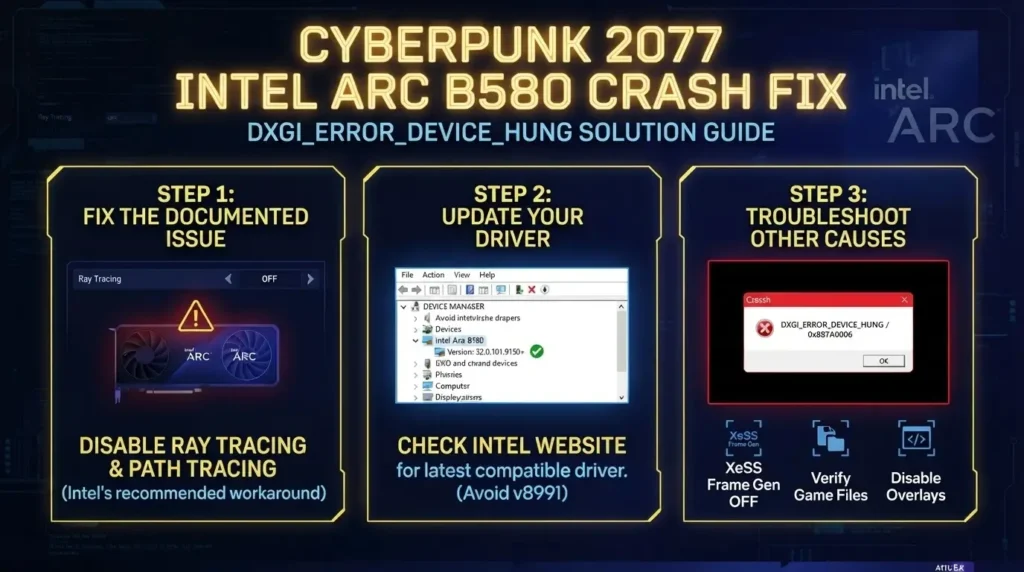
How to Fix Intel Arc B580 / A770 Random Reboots and Black Screen Crashes
Intel Arc B580 and A770 graphics cards can experience unexpected system restarts, sudden black screens, display signal loss, or crashes during gaming. These problems may be related to graphics drivers, motherboard firmware, PCIe power delivery, or hardware configuration.
The best approach is to identify the source of the instability before replacing components or reinstalling Windows. Here are the most useful troubleshooting methods.
1. Perform a Clean Intel Graphics Driver Installation
Corrupted or incompatible graphics drivers can cause display failures and unexpected crashes.
Download the latest compatible driver from the Intel Download Center.
Download Display Driver Uninstaller (DDU) from its official website.
Disconnect your internet connection temporarily.
Boot Windows into Safe Mode.
Run DDU and select Intel as the graphics driver manufacturer.
Choose Clean and Restart.
Install the downloaded Intel Arc driver.
Restart the computer and test the system.
If the crashes started after a driver update, try an earlier stable driver instead of repeatedly installing the newest version.
2. Enable Resizable BAR in BIOS
Resizable BAR is an important requirement for optimal Intel Arc graphics performance. Incorrect BIOS configuration can also create compatibility problems.
Follow these steps:
Restart your computer and enter BIOS.
Find the PCIe or Advanced settings.
Enable Above 4G Decoding.
Enable Re-Size BAR Support.
Disable CSM or Legacy Boot.
Make sure UEFI boot mode is enabled.
Save the settings and restart.
The exact menu names depend on your motherboard manufacturer.
Intel recommends these settings for both B-Series and A-Series graphics cards.
Desktop Quick Start Guide+1
3. Check Your Power Supply and GPU Connections
Unexpected restarts under heavy gaming loads can indicate a power delivery problem.
Check the following:
Make sure the GPU power connectors are fully inserted.
Use the appropriate PCIe power cables recommended by your GPU manufacturer.
Avoid loose adapters or questionable power extensions.
Check whether the PSU has sufficient capacity for your complete system.
Inspect the power connectors for visible damage or overheating.
For Intel’s Arc A770 Limited Edition, Intel specifies a minimum 600W PSU with separate 8-pin and 6-pin PCIe power connections. Requirements for other models can differ.
Intel+1
4. Update Your Motherboard BIOS
An outdated motherboard BIOS can cause compatibility issues with newer graphics cards.
Visit your motherboard manufacturer’s support website and check for a newer BIOS version.
Before updating:
Confirm your exact motherboard model.
Read the BIOS release notes.
Follow the manufacturer’s installation instructions.
Do not interrupt the update process.
After updating, check that UEFI, Above 4G Decoding, and Resizable BAR are configured correctly.
5. Disable GPU Overclocking and Undervolting
Unstable GPU settings can cause black screens, application crashes, and system restarts.
If you have modified GPU settings:
Open Intel Graphics Software or your GPU tuning application.
Reset GPU settings to their defaults.
Remove custom voltage adjustments.
Disable memory overclocking.
Test the card using its default configuration.
Do not assume the graphics card is defective until it has been tested without custom tuning.
6. Check GPU Temperature and Cooling
High temperatures or inadequate cooling can contribute to instability.
Monitor GPU temperatures while gaming and running demanding applications.
Check:
GPU core temperature.
GPU hotspot temperature, if available.
Fan operation.
Case airflow.
Dust accumulation around the GPU heatsink.
If temperatures rise unusually high, inspect the cooling system and fan operation before continuing stress tests.
7. Disable Unnecessary Background Overlays
Multiple applications accessing the GPU simultaneously can sometimes contribute to application instability.
Temporarily disable:
Discord overlay.
Steam overlay.
Xbox Game Bar.
Third-party FPS monitoring tools.
GPU tuning utilities.
Background recording applications.
Test the system again to determine whether one of these applications is involved.
8. Check Windows System and Crash Logs
Windows Event Viewer can help identify what happened immediately before a reboot.
Press
Win + X.Open Event Viewer.
Navigate to Windows Logs → System.
Look for Critical and Error entries around the time of the crash.
Pay particular attention to:
Kernel-Power Event ID 41.
Display driver errors.
WHEA-Logger errors.
Unexpected shutdown events.
Kernel-Power 41 indicates that Windows detected an unexpected shutdown. It does not independently identify the cause.
9. Test the PCIe Slot and GPU Connection
A poor PCIe connection can cause display signal loss or hardware detection problems.
Shut down the computer.
Disconnect the power cable.
Remove the graphics card.
Inspect the PCIe slot and GPU contacts.
Reinstall the card firmly in the primary PCIe x16 slot.
Secure the card to the case.
Reconnect its power cables.
If another compatible PCIe slot is available, testing it can help identify a motherboard or slot-related problem.
10. Test System Memory and CPU Stability
Random reboots are not always caused by the graphics card.
Unstable RAM profiles, CPU overclocking, and memory controller instability can also cause system crashes.
Try the following:
Temporarily disable XMP or EXPO.
Return CPU settings to default.
Run Windows Memory Diagnostic.
Test RAM modules individually if memory errors are suspected.
Check CPU temperatures.
If the system becomes stable after disabling XMP or EXPO, investigate memory compatibility and BIOS settings.
11. Check Windows for Corrupted System Files
Open Command Prompt as administrator and execute:
DISM /Online /Cleanup-Image /RestoreHealthAfter completion, run:
sfc /scannowRestart Windows once both scans have finished.
These commands can repair damaged Windows components, although they will not fix defective GPU hardware or insufficient power delivery.
12. Test the GPU in Another Computer
If all software and configuration checks fail, test the Intel Arc graphics card in another compatible system.
This helps distinguish between:
A defective graphics card.
A motherboard compatibility issue.
An unstable power supply.
A Windows or driver problem.
If the same crashes occur in another properly configured system, hardware inspection or warranty service may be necessary.
Final Recommendations
For Intel Arc B580 and A770 owners experiencing random reboots or black screens, prioritize these checks:
Clean graphics driver installation.
Resizable BAR and Above 4G Decoding configuration.
PSU capacity and PCIe power connections.
Motherboard BIOS update.
Default GPU and CPU settings.
Windows Event Viewer investigation.
GPU testing in another system.
Avoid replacing the graphics card or power supply without first identifying the source of the instability.
Official Intel Resources: