
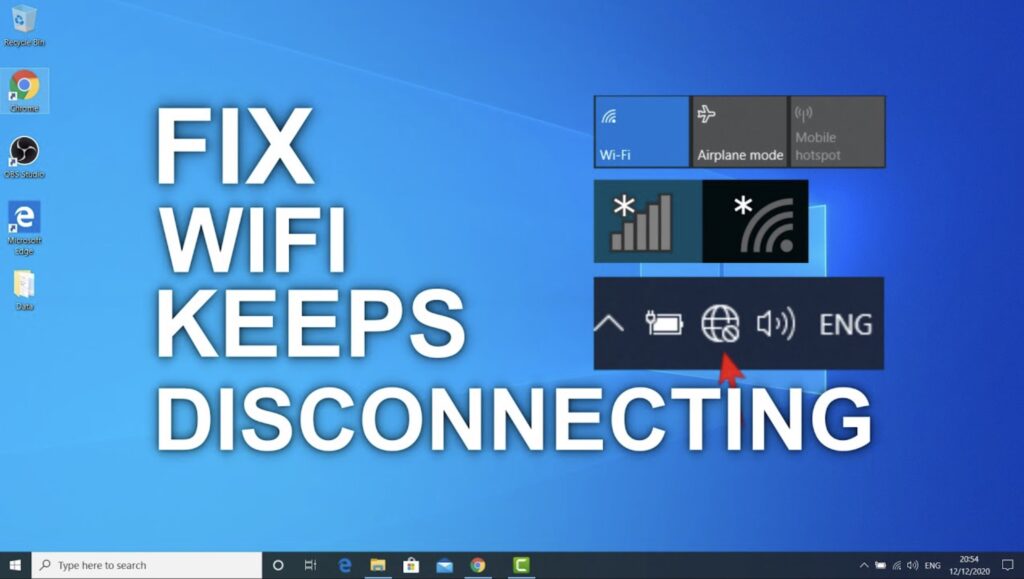
Wifi Keeps Randomly Disconnecting
Why Does Wi-Fi Keep Randomly Disconnecting? (Step-by-Step Fixes)
A Wi-Fi connection that drops out every few minutes disrupts video calls, interrupts downloads, and makes remote work nearly impossible.
When your internet cuts out intermittently, the root cause usually falls into one of two categories: your individual device is struggling to communicate with the network card, or your router is dropping the connection entirely.
Here is how to isolate the problem and permanently resolve random Wi-Fi disconnections across Windows, macOS, and home network hardware.
Step 1: Isolate the Device vs. the Router
Before altering system settings, determine the scope of the drops:
If every phone, TV, and computer disconnects at the exact same time: The issue lies with your router, modem, or internet service provider (ISP). Jump to Step 3 and Step 7.
If only one laptop or phone drops while other devices stay online: The problem is isolated to that specific device’s network card, drivers, or power settings. Start with Step 2.
Step 2: Disable Wi-Fi Power Saving (Laptops & Desktops)
The single most common reason Windows laptops randomly drop Wi-Fi—especially when running on battery or waking from idle—is aggressive power management. Windows will cut power to the wireless adapter to conserve energy, breaking active connections.
On Windows 10 & 11:
Right-click the Start menu and select Device Manager.
Expand the Network adapters section.
Right-click your wireless card (commonly listed as Intel Wi-Fi, Realtek, MediaTek, or Qualcomm) and select Properties.
Go to the Power Management tab.
Uncheck the box that says: “Allow the computer to turn off this device to save power.”
Click OK and restart your machine.
(Note: If the Power Management tab is missing, your system uses Modern Standby. In that case, update your Wi-Fi driver directly via Step 4).
Step 3: Separate the 2.4 GHz and 5 GHz Network Names (SSIDs)
Modern routers combine both the 2.4 GHz and 5 GHz bands under a single Wi-Fi name (often marketed as “Band Steering” or “Smart Connect”).
While convenient, band steering frequently malfunctions. As you move around or experience slight signal attenuation, the router forces your device to switch between 2.4 GHz and 5 GHz. During that band handover, the connection drops packets and briefly disconnects.
The Fix:
Open a browser and log into your router’s administrative console (typically accessed via
192.168.1.1or192.168.0.1).Navigate to Wireless Settings.
Disable Smart Connect or Band Steering.
Assign distinct names to each band:
Example:
HomeNetwork_2.4GExample:
HomeNetwork_5G
Connect your device manually:
Use 5 GHz (or 6 GHz on Wi-Fi 6E/7) for laptops, gaming consoles, and work PCs located within 15–20 feet of the router for maximum speed and zero interference.
Use 2.4 GHz for smart home plugs, printers, or devices located far away through multiple walls.
Step 4: Adjust “Roaming Aggressiveness” (Intel Adapters)
If your laptop uses an Intel Wi-Fi chip, it may be scanning for a slightly better signal even when your current connection is perfectly stable. Each time it scans and attempts a handoff, your link drops.
Open Device Manager > Network adapters.
Right-click your Wi-Fi card > Properties > Advanced tab.
Scroll through the property list and select Roaming Aggressiveness (or Roaming Sensitivity).
Lower the value from Medium or High down to Lowest or Medium-Low.
While in this menu, find Preferred Band and set it to Prefer 5GHz band (if you stay close to the router).
Click OK.
Step 5: Clean-Install the Network Adapter Driver
Corrupted network drivers will repeatedly crash the Wi-Fi service in the background, showing up as a momentary yellow exclamation mark or an empty Wi-Fi tray.
Download the latest Wi-Fi driver directly from your laptop maker’s support page (Lenovo, Dell, HP, ASUS) or Intel’s Driver & Support Assistant. Do not rely on Windows Update for network drivers.
Open Device Manager > Network adapters.
Right-click your Wi-Fi adapter and click Uninstall device. Check the box for “Attempt to remove the driver for this device” if prompted.
Restart your PC.
Run the downloaded installer to lay down a fresh, uncorrupted driver stack.
Step 6: Flush the DNS and Reset the TCP/IP Stack
Damaged network cache files can trigger IP lease renegotiations that drop connections midway through web requests.
On Windows:
Open the Start menu, type cmd, right-click Command Prompt, and select Run as administrator.
Run the following commands one by one, pressing Enter after each:
DOS
netsh winsock reset
netsh int ip reset
ipconfig /release
ipconfig /renew
ipconfig /flushdns
Restart your computer.
On macOS:
Open System Settings > Wi-Fi.
Click Details next to your connected network > TCP/IP.
Click Renew DHCP Lease.
Step 7: Eliminate Radio Interference and Hardware Bottlenecks
Wi-Fi relies on unlicensed radio frequencies that are susceptible to localized physical and electrical interference:
Unshielded USB 3.0 Cables/Drives: Poorly shielded external hard drives and USB 3.0 hubs emit broadband noise in the 2.4–2.5 GHz spectrum. If an external drive or dock is plugged directly adjacent to your laptop’s Wi-Fi antenna or router, move it at least 2 to 3 feet away.
Overcrowded Wi-Fi Channels: If you live in an apartment complex, your neighbors’ routers are likely broadcasting on the same channel. Log into your router, access Wireless Settings, and switch the 2.4 GHz channel to non-overlapping Channel 1, 6, or 11. For 5 GHz, select a static channel such as 36, 40, 44, or 48.
Router Thermal Throttling: Routers operate 24/7. Dust accumulation in the vents causes the internal processor to overheat, resulting in intermittent packet drops and sudden reboots under heavy traffic. Ensure the unit is elevated in open air rather than tucked inside an enclosed cabinet.
If drops persist across every device despite a factory reset of the router, contact your ISP to run a line quality test. Intermittent packet loss often originates from degraded coaxial splitters, water in the outdoor junction box, or fluctuating signal-to-noise ratios (SNR) on the incoming cable.