
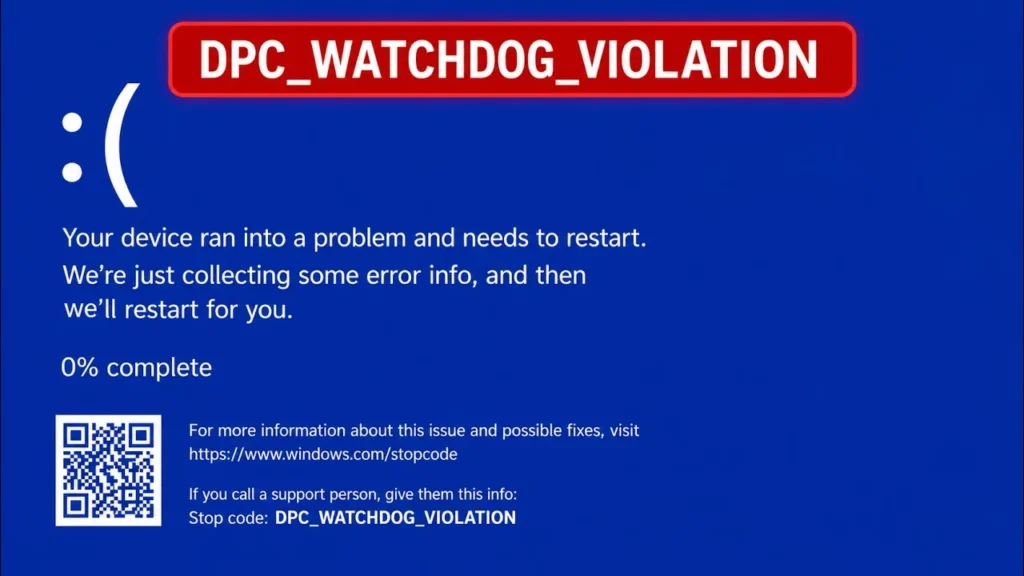
Fix: Windows 11 Error Stop Code DPC_Watchdog_Violation 0x133
The Windows 11 stop code DPC_WATCHDOG_VIOLATION (0x00000133) occurs when the kernel watchdog timer detects that a Deferred Procedure Call (DPC) routine has exceeded its maximum execution tick limit at DISPATCH_LEVEL (IRQL 2). Because thread scheduling suspends during DPC processing, an unresponsive driver deadlocks the processor. This error code commonly points to an outdated storage controller driver (storahci.sys vs. iaStorA.sys), graphics scheduler latency (nvlddmkm.sys or amdkmdag.sys), PCIe Link State power drops, or SSD firmware stalls during sleep transitions.
Quick Diagnostic Matrix
| Symptom | Root Cause | Setting / Tool | Recommended Fix |
| Crash during disk load or gaming | Intel RST driver (iaStorA.sys) stalling at IRQL 2 | devmgmt.msc > IDE ATA/Storage | Switch controller driver to Standard SATA AHCI Controller. |
| BSOD with NVIDIA or AMD graphics | Display driver queue timeout in dxgkrnl.sys | Safe Mode / DDU | Wipe display drivers using DDU and perform a clean WHQL install. |
| Black screen on startup / not restarting | PCIe ASPM or Fast Startup failing wake handshakes | powercfg.cpl | Disable Fast Startup and set PCIe Link State to Off. |
| Error during Windows 11 clean install | Storage controller failing NVMe block negotiation | BIOS / UEFI Settings | Disable Intel VMD / RST in BIOS; enforce pure AHCI/NVMe. |
| Laptop freezes after sleep (Lenovo/ASUS) | OEM telemetry or power-switching driver hang | Device Manager / OEM App | Update ACPI Virtual Power drivers; update SSD firmware. |
1. Replace Storage Controller with Standard SATA AHCI
The most prevalent trigger for stop code 0x133 on Windows 11 is an incompatible storage controller driver—specifically legacy Intel Rapid Storage Technology (iaStorA.sys). Replacing proprietary drivers with Microsoft’s native AHCI driver prevents I/O queue deadlocks.
Press
Windows Key + Xand select Device Manager (devmgmt.msc).Expand IDE ATA/ATAPI controllers (or Storage controllers).
Right-click your SATA/AHCI controller and select Properties.
Under the Driver tab, click Update driver > Browse my computer for drivers.
Select Let me pick from a list of available drivers on my computer.
Highlight Standard SATA AHCI Controller and click Next.
Restart your PC to allow the kernel to bind
storahci.sys.
[Device Manager (devmgmt.msc)]
 └── IDE ATA/ATAPI controllers
      └── [Active Controller] > Update Driver > Browse my computer... > Let me pick...
           └── [Select] "Standard SATA AHCI Controller" (storahci.sys)
2. Reinstall Graphics Drivers (NVIDIA & AMD Fix)
When graphics drivers fail to yield hardware execution frames, the kernel triggers DPC_WATCHDOG_VIOLATION. A clean uninstallation strips damaged profiles and resolves rendering latency:
Download the latest WHQL driver for your GPU (NVIDIA, AMD, or Intel) and download Display Driver Uninstaller (DDU).
Hold
Shiftwhile clicking Restart in the Start Menu, then navigate toTroubleshoot > Advanced options > Startup Settings > Restartand press4to enter Safe Mode.Launch DDU, select GPU, choose your hardware vendor (NVIDIA or AMD), and click Clean and restart.
Once Windows boots back to the desktop, run your downloaded driver setup file.
NVIDIA: Choose Custom Installation and check Perform a clean installation. In the NVIDIA Control Panel, set Power management mode to Prefer consistent performance.
AMD: Run the installer and select the Factory Reset / Minimal install profile to avoid software overlay conflicts.
3. Disable Fast Startup and PCIe Link State Management
If your system crashes with a black screen on startup, or freezes and is not restarting automatically after the blue screen, power transitions are disconnecting the storage bus before memory dumps can write.
Step A: Disable Fast Startup
Press
Windows Key + R, typepowercfg.cpl, and hit Enter.Click Choose what the power buttons do > Change settings that are currently unavailable.
Uncheck Turn on fast startup (recommended) and click Save changes.
Step B: Disable PCIe Link State Power Management
In
powercfg.cpl, click Change plan settings next to your active plan, then Change advanced power settings.Expand PCI Express > Link State Power Management and set both battery and plugged-in states to Off.
Expand Hard disk > Turn off hard disk after and set the counter to 0 (Never).
Click Apply, then OK.
4. Update SSD Firmware and OEM Laptop Drivers
Community telemetry across Reddit and hardware forums confirms that outdated SSD controller firmware (notably on Samsung, Crucial, and Kingston drives) drops read/write requests during burst operations, causing cumulative DPC queue timeouts.
Update SSD Firmware: Open your manufacturer’s utility (Samsung Magician, Crucial Storage Executive, or WD Dashboard) and install pending firmware updates.
Lenovo Laptops: Open Device Manager, expand System devices, and update the Lenovo ACPI-Compliant Virtual Power Controller. In Lenovo Vantage, toggle off Network Boost.
ASUS Laptops: Update the ASUS System Control Interface v3 and ensure Armoury Crate GPU Power Saving is set to Standard rather than Eco Mode.
5. Resolve Windows 11 Install Halts & System Integrity
If error 0x133 occurs while running a fresh Windows 11 install or upgrade, storage abstraction layers are failing to negotiate NVMe block transfers:
BIOS Storage Mode: Enter UEFI BIOS (
DelorF2on boot), locate Intel VMD Technology (or RAID mode), and set it to Disabled. Ensure storage mode is set strictly to AHCI/NVMe.System File Integrity: Open Command Prompt as Administrator and run:
DOSDISM /Online /Cleanup-Image /RestoreHealth sfc /scannowRestart your PC to commit repairs to system component manifests.