
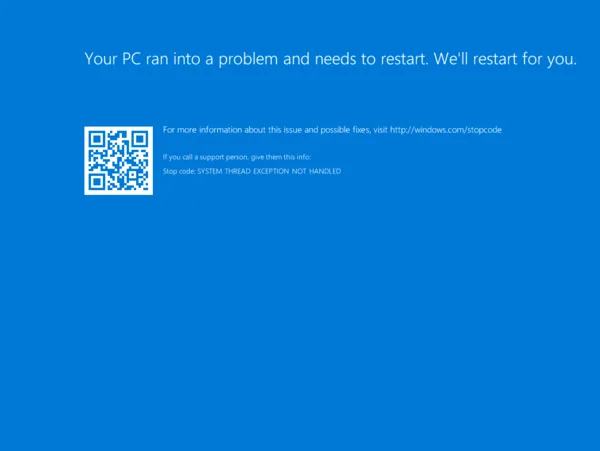
How to Fix “SYSTEM_THREAD_EXCEPTION_NOT_HANDLED” (Stop Code 0x0000007E)
The SYSTEM_THREAD_EXCEPTION_NOT_HANDLED bug check (Stop Code 0x0000007E) occurs when a system thread executing inside the Windows kernel generates an exception that the built-in structured exception handler (SEH) fails to catch. Under the Windows NT architecture, kernel-mode threads execute with direct access to hardware and physical address spaces; if a thread attempts an illegal operation—such as dereferencing a null pointer, writing to a read-only memory page, or executing an illegal instruction—and leaves the exception unhandled, the kernel halts execution immediately to prevent system-wide memory and filesystem corruption.
In over 85% of occurrences, Stop Code 0x7E is caused by a faulty third-party device driver (most commonly GPU, Wi-Fi, audio, or kernel-level anti-cheat/antivirus filter drivers). The remaining instances trace to corrupted system binaries in the Windows Component Store, outdated UEFI BIOS microcode, or physical DRAM parity errors.
Quick Diagnostic Matrix
| Parameter 1 (Exception Code) / Symptom | Underlying Mechanism | Primary Tool / Inspection | Recommended Fix |
0xC0000005 (STATUS_ACCESS_VIOLATION) | Driver attempted to read or write to an unmapped, protected, or freed memory address | WinDbg / Minidump | Isolate the .sys file in the stack trace; clean-install or roll back that specific driver. |
Crash lists nvlddmkm.sys, amdkmdag.sys, or igdkmd64.sys | Display driver thread crashed or lost synchronization with the DirectX graphics kernel | Safe Mode + DDU | Use Display Driver Uninstaller (DDU) in Safe Mode; install WHQL clean driver. |
Crash lists Netwtw10.sys, rtwlanu.sys, or ndis.sys | Network or Wi-Fi controller driver encountered a buffer overrun or packet race condition | Device Manager | Roll back Wi-Fi/LAN driver; disable power saving on the network adapter. |
0xC000001D (STATUS_ILLEGAL_INSTRUCTION) | Driver attempted to execute an unsupported CPU instruction or corrupted op-code | Command Prompt (DISM/SFC) | Run DISM /RestoreHealth and sfc /scannow; update motherboard BIOS microcode. |
Crash occurs randomly with changing .sys file names | Unstable memory timings, failing DRAM cell, or aggressive XMP/EXPO profile | MemTest86 / BIOS | Disable XMP / EXPO in UEFI; test individual RAM sticks with MemTest86. |
1. Decode the Stop Code Parameters & Minidump
Bug check 0x7E outputs four diagnostic parameters. The first parameter reveals the exact Win32/NTSTATUS exception that triggered the halt:
[Crash Occurs] ──► Minidump saved to C:WindowsMinidump*.dmp
                         │
                         ▼
             [Open File in WinDbg / WinDbg Preview]
                         │
                         ▼
                  [Execute: !analyze -v]
                         │
       ┌─────────────────┴─────────────────┐
       ▼                                   ▼
 [Arg1: 0xC0000005]                 [MODULE_NAME: vendor_driver.sys]
 (Memory Access Violation)           (Exact File Causing the Crash)
Download WinDbg from the Microsoft Store (or use BlueScreenView).
Right-click WinDbg and select Run as administrator.
Press
Ctrl + D, navigate toC:WindowsMinidump, and open the most recent.dmpfile.Run the automated analysis:
Plaintext!analyze -vInspect the following critical output fields:
Arguments[0](Arg1):0xC0000005= Memory Access Violation (most common).0x80000003= Hardcoded breakpoint or assertion reached.0xC000001D= Illegal instruction (corrupted code in memory).
MODULE_NAME&IMAGE_NAME: Displays the binary that caused the exception (e.g.,nvlddmkm.sys,rtwlane.sys,vgk.sys).PROCESS_NAME: The active process thread when the fault occurred.
2. Isolate and Clean-Install the Faulting Driver (DDU Method)
If the minidump points to a graphics driver (nvlddmkm.sys, amdkmdag.sys, igdkmd64.sys) or an audio driver (RTKVHD64.sys), residual registry entries and cached .dll files often cause driver loops during state transitions.
[Safe Mode Clean Driver Workflow]
 1. Download latest WHQL Driver & Display Driver Uninstaller (DDU).
 2. Boot Windows into Safe Mode (Shift + Restart > Startup Settings > Option 4).
 3. Run DDU ──► Select GPU Vendor ──► Click "Clean and restart".
 4. Windows boots normally ──► Install fresh driver using "Clean Install" option.
Boot into Safe Mode:
Hold the
Shiftkey while clicking Restart in the Start Menu.Go to Troubleshoot > Advanced options > Startup Settings > click Restart.
Upon reboot, press 4 or F4 to enter Safe Mode (which loads minimal drivers without loading third-party display extensions).
Execute Driver Sweep:
Run Display Driver Uninstaller (DDU).
Select your device type (GPU) and manufacturer (NVIDIA / AMD / Intel).
Click Clean and restart.
Reinstall Stable Driver:
Once Windows reboots into standard mode, install the latest WHQL certified driver package.
Check the box labeled Perform a clean installation during driver setup.
3. Roll Back or Reinstall Network and Peripheral Drivers
If the crash identifies network drivers (Netwtw10.sys for Intel Wi-Fi, rtwlanu.sys for Realtek, e1d68x64.sys for Intel Ethernet), corrupted packet offload tables or aggressive power management will trip thread exceptions.
[Device Manager (devmgmt.msc)]
 └── Network adapters
      └── [Your Wi-Fi / LAN Controller] > Properties
           ├── Driver Tab       ──► "Roll Back Driver" (If recently updated)
           └── Power Management ──► [UNCHECK] "Allow computer to turn off device"
Press
Win + Xand select Device Manager (or pressWin + R, typedevmgmt.msc, and hit Enter).Expand Network adapters.
Right-click your primary Wi-Fi or Gigabit Ethernet controller and select Properties.
Under the Driver tab:
If Roll Back Driver is clickable, an unstable automatic Windows Update installed a broken driver. Click Roll Back Driver.
If unavailable, click Uninstall device, check Attempt to remove the driver for this device, and restart your PC. Windows will reinstall the native factory driver.
Go to the Power Management tab:
Uncheck Allow the computer to turn off this device to save power (prevents
0x7Ecrashes when entering or exiting low-power sleep states).
4. Audit Kernel Filter Drivers (Anti-Cheat, VPN, Antivirus)
Software operating at Ring 0—such as third-party firewalls, VPN virtual adapters, and game anti-cheat systems—inject filter drivers into the I/O request packet (IRP) stack. If a filter driver drops an IRP or references an unmapped pointer, it causes SYSTEM_THREAD_EXCEPTION_NOT_HANDLED.
[Command Prompt (Administrator)]
 └── fltmc filters
      ├── Inspect loaded minifilters:
      │    ├── Antivirus:   aswSP.sys, bdselfpr.sys, epfw.sys
      │    ├── Anti-Cheat:  vgk.sys, BEDaisy.sys, EasyAntiCheat.sys
      │    └── VPN/Virtual: tap0901.sys, wfpdiag.sys
Press
Win + S, typecmd, right-click Command Prompt, and select Run as administrator.Query all active filesystem filter drivers:
DOSfltmc filtersCheck the list for third-party modules:
Kernel Anti-Cheat: If the crash references
vgk.sys(Riot Vanguard),EasyAntiCheat.sys, orBEDaisy.sys, uninstall the associated game and reinstall the client with administrative privileges.Third-Party Antivirus: Security suites (Bitdefender, Avast, Norton) frequently conflict with Windows Defender during feature updates. Temporarily uninstall third-party security software using its dedicated cleanup utility (e.g., Norton Remove and Reinstall Tool).
Virtual Network Adapters: Uninstall virtual VPN network adapters (OpenVPN TAP, NordLynx, WireGuard) through Device Manager.
5. Repair the Windows Component Store and System Files
If the system crashed mid-update or suffered an abrupt power loss, core binaries (ntoskrnl.exe, hal.dll, fltmgr.sys) can develop internal bit corruption that triggers illegal instruction or invalid memory exceptions.
[Repair Sequence Flow]
 DISM Online Cleanup ──► Scans & repairs Windows Component Store via Microsoft CDN
         │
         ▼
 SFC Scannow         ──► Scans system files & replaces corrupted DLLs/SYS binaries
Open Command Prompt as Administrator.
Run the Deployment Image Servicing and Management (DISM) tool to pull fresh binary payloads from Windows Update servers:
DOSdism /online /cleanup-image /restorehealthAllow the verification percentage to reach 100%. If DISM reports that it successfully repaired component store corruption, run the System File Checker:
DOSsfc /scannowExamine the output:
“Windows Resource Protection found corrupt files and successfully repaired them”: Restart your computer immediately to finalize the file substitutions.
“Windows Resource Protection did not find any integrity violations”: Operating system core binaries are intact; proceed to Step 6.
6. Test Physical Memory & Disable Overclocking Profiles (XMP / EXPO)
If the first parameter of Stop Code 0x7E is 0xC0000005 (Access Violation) and the crash occurs across changing .sys files or with no single driver identified, physical memory instability is flipping bits in kernel memory space.
[UEFI BIOS Memory Settings]
 Advanced / Extreme Tweaker / OC Menu
   ├── XMP / DOCP / EXPO Profile ──► [Set to DISABLED]
   ├── DRAM Frequency            ──► [Set to AUTO] (Enforces base JEDEC speed)
   └── Memory Timings            ──► [Default / Auto]
Disable Memory Profiles in BIOS:
Restart your PC and tap
DelorF2repeatedly on startup to enter the UEFI BIOS.Locate the memory overclocking settings (XMP for Intel, DOCP or EXPO for AMD).
Set the profile to Disabled or Auto to force the DRAM to run at safe baseline JEDEC speeds (e.g., $2133text{ MHz}–2666text{ MHz}$ for DDR4; $4800text{ MHz}$ for DDR5).
Press
F10to save changes and restart.
Execute MemTest86:
Download the free version of PassMark MemTest86 and write the image to a blank USB drive.
Boot your PC from the USB flash drive.
Allow the utility to execute at least 4 full passes.
If even a single memory error is reported, remove all RAM sticks except one in primary slot A2 and test each stick individually to isolate the physically defective module.
7. Update Motherboard UEFI BIOS & Chipset Drivers
Outdated CPU microcode tables fail to manage modern power-state transitions ($Ctext{-states}$) and PCIe link-state power management (L1 ASPM). This causes bus timeouts that drop storage and network controllers from the system bus, resulting in an immediate unhandled thread exception.
[BIOS Update Sequence]
 1. Check current BIOS version: Win + R > msinfo32 > "BIOS Version/Date".
 2. Download latest stable BIOS from Motherboard Support Page.
 3. Place BIOS file on a FAT32 USB drive.
 4. Enter BIOS > Launch EZ Flash / M-Flash / Q-Flash utility > Apply Update.
Press
Win + R, typemsinfo32, and hit Enter. Note your BaseBoard Product and current BIOS Version/Date.Visit the motherboard manufacturer’s support portal (ASUS, MSI, Gigabyte, ASRock) and download the latest stable BIOS revision.
Flash the BIOS using the integrated UEFI flash tool (e.g., ASUS EZ Flash, MSI M-Flash).
Download and install the latest Chipset Drivers (AMD Chipset Drivers or Intel Management Engine / INF Update Utility) directly from your motherboard vendor or chip manufacturer to ensure proper PCIe and power-rail arbitration.
If SYSTEM_THREAD_EXCEPTION_NOT_HANDLED (0x7E) persists after a clean display driver installation, disabling XMP/EXPO, running DISM/SFC sweeps, and updating the motherboard BIOS, the failure is isolated to a physical hardware defect. This indicates that either an SSD/NVMe drive controller is intermittently dropping communication during deep read bursts (corrupting data loaded into system threads) or the processor’s Integrated Memory Controller (IMC) has suffered silicon degradation, requiring component-level replacement of the storage drive, RAM, or CPU.