
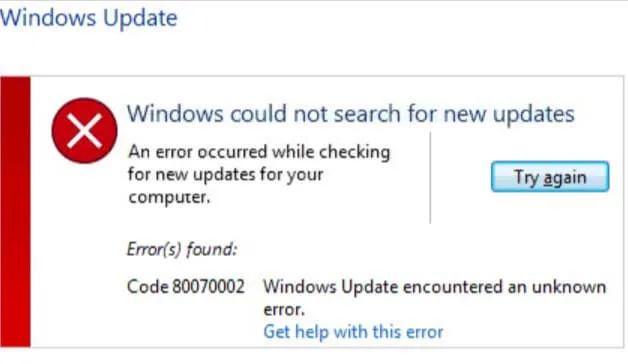
How to Fix Windows Update Error 0x80070002
Windows Update error code 0x80070002 translates to the Win32 system error ERROR_FILE_NOT_FOUND, triggered when the Component-Based Servicing (CBS) engine or Windows Update Agent attempts to stage, decompress, or verify an update payload whose files or cryptographic manifests are missing, truncated, or inaccessible in the local cache. When Windows Update halts during download or installation with this code, the servicing stack has failed to locate a required hash catalog, corrupted staging archives inside SoftwareDistribution, or lost synchronization with the Windows Time service.
Quick Diagnostic Matrix
| Symptom | Root Cause | Setting / Path | Recommended Fix |
| Error triggers during early download phase (0%–20%) | Time/date skew invalidates cryptographic certificates or CDN tokens | timedate.cpl & w32tm | Synchronize Windows Time service and force an NTP server resync. |
| Error halts progress during staging or installation | Corrupted download chunks or locked index database in update cache | services.msc & SoftwareDistribution | Stop update services, rename SoftwareDistribution and catroot2, and restart. |
| Fails across every cumulative and security update | Damaged manifest entries in the Component Store (WinSxS / CBS) | cmd (Admin) > DISM & sfc | Run DISM /RestoreHealth to repair the servicing store, then execute sfc /scannow. |
| Only one specific KB package fails repeatedly | Incomplete patch packaging on CDN or local file-locking conflict | Microsoft Update Catalog | Download the standalone .msu installer directly and install manually via WUSA. |
1. Purge the SoftwareDistribution and Catroot2 Caches
The most frequent cause of
0x80070002 is a partial download where Windows Update marks a package as present, but the underlying payload files inside SoftwareDistribution are missing or corrupted. Rebuilding these staging directories forces Windows to generate clean database indexes.- Press the Windows Key, type
cmd, right-click Command Prompt, and select Run as administrator. - Stop the core background services managing update transactions by executing the following commands sequentially:DOS
net stop wuauserv net stop cryptSvc net stop bits net stop msiserver - Rename the active update cache and cryptographic catalog folders to back them up:DOS
ren C:WindowsSoftwareDistribution SoftwareDistribution.old ren C:WindowsSystem32catroot2 Catroot2.old - Restart the update services:DOS
net start wuauserv net start cryptSvc net start bits net start msiserver - Open Settings > Windows Update and click Check for updates to initiate a clean download stream.
[Elevated Command Prompt]
 ├── net stop wuauserv / cryptSvc / bits
 ├── ren C:WindowsSoftwareDistribution SoftwareDistribution.old
 ├── ren C:WindowsSystem32catroot2 Catroot2.old
 └── net start wuauserv / cryptSvc / bits
2. Synchronize Date, Time, and NTP Settings
Windows Update authenticates downloaded packages using time-stamped digital signatures. If your system clock drifts by more than a few minutes from the Microsoft authentication servers, certificate validation fails, and the update engine drops the file, logging
ERROR_FILE_NOT_FOUND.- Press
Windows Key + R, typetimedate.cpl, and hit Enter. - Switch to the Internet Time tab and click Change settings.
- Check Synchronize with an Internet time server.
- Set the server to
time.windows.com(orpool.ntp.org) and click Update now. - If the synchronization times out, force the Windows Time service to resync via an elevated Command Prompt:DOS
net stop w32time w32tm /unregister w32tm /register net start w32time w32tm /resync /force - Click OK in the Date and Time menu, restart your machine, and retry the update.
3. Repair the Servicing Store with DISM and SFC
If core manifest files inside the Windows Component Store (
C:WindowsWinSxS) are damaged or missing, the CBS engine cannot construct the assembly tree required to patch system binaries.- Press
Windows Key + S, typecmd, right-click Command Prompt, and choose Run as administrator. - Execute the Deployment Image Servicing and Management (DISM) tool to scan and repair the component store against Windows Update servers:DOS
DISM /Online /Cleanup-Image /RestoreHealth - Once the DISM task completes to 100%, run the System File Checker to repair damaged protected OS files:DOS
sfc /scannow - Look for the console result:
- “Windows Resource Protection found corrupt files and successfully repaired them” confirms that missing manifests or system DLLs were replaced.
- Restart Windows to finalize the component store repair.
4. Install the Update Manually via Microsoft Update Catalog
If a specific cumulative update continues to fail over the automatic delivery pipe, you can bypass the local Windows Update download agent by applying the standalone Microsoft Update (
.msu) package.- Open Settings > Windows Update and note the exact Knowledge Base number of the failing update (e.g.,
KB5034441). - Type the KB number into the search box and press Enter.
- Locate the package matching your specific system architecture:
- x64-based Systems for standard 64-bit Intel/AMD PCs.
- ARM64-based Systems for Snapdragon/ARM devices.
- Click Download, then click the
.msufile link in the popup window. - Once downloaded, double-click the
.msufile to run the Windows Update Standalone Installer (wusa.exe), or run it via an elevated Command Prompt:DOSwusa.exe "C:PathToUpdatePackage.msu" /quiet /norestart - Restart your PC when installation finishes.
5. Verify Critical Servicing System Services
If supporting infrastructure services are disabled or configured with incorrect log-on accounts, Windows Update will be unable to transfer or stage downloaded archives.
- Press
Windows Key + R, typeservices.msc, and press Enter. - Scroll down and verify the configuration for the following three services:
- Windows Update (
wuauserv): Startup type should be Manual or Automatic. - Background Intelligent Transfer Service (
BITS): Startup type should be Manual or Automatic (Delayed Start). - Cryptographic Services (
CryptSvc): Startup type must be Automatic.
- If any service is stopped, right-click it and select Start.
- Double-click Cryptographic Services, open the Log On tab, and ensure it is set to run under the Network Service account (not Local System).
6. Perform a Non-Destructive In-Place Upgrade
When DISM and manual standalone packages fail with
0x80070002, the underlying registry links in the Component-Based Servicing hive (HKEY_LOCAL_MACHINECOMPONENTS) have broken beyond automated repair. An in-place upgrade overwrites and repairs the operating system files while preserving all personal data, settings, and installed applications.- Download the official Windows 11 Media Creation Tool or the Windows 11 Disk Image (ISO) from Microsoft’s download portal.
- If using the ISO, right-click the file and select Mount.
- Run
setup.exefrom the mounted virtual drive. - On the setup screen, click Change how Setup downloads updates and choose Not right now (to prevent the installer from using the broken update agent during setup).
- On the Ready to install screen, verify that the option Keep personal files and apps is checked.
- Click Install. The machine will restart several times while replacing damaged system partitions and rebuilding the Component Store from a fresh baseline.